Docker for Pentester: Image Vulnerability Assessment


We are moving from virtualization to containerization and we are all familiar with the container services such as docking or quay.io. You can pick a dock image for a particular application by selecting several choices. As you know, when a developer works with a container, it not only packs the program but is part of the OS, and we do not know whether the connect libraries have been patched or vulnerable.

So, we will show "how to perform a container audit and vulnerability assessment" in any infrastructure in this role.
Table of Contents
Prerequisties
Clair
·         Installation
·         Docker Image Vulnerabilty Scanning
Bench-security
·         Installation
·         Container Hardening

Prerequisties
At your host machine, Install docker and pull an image, you want to scan.

Clair : Vulnerability

Installation
CoreOS has created an awesome container scan tool called Clair. Clair is an open source project for the static analysis of vulnerabilities in appc and docker containers. You can clone the package with the help of git, using following command

git clone https://github.com/arminc/clair-scanner.git


The scanner is develop in go language, therefore golang on your local machine over which is docker is running.
apt install golang


Build the library to install all dependencies of the clair.
cd clair-scanner
make build


make cross


As you can see, we have the following file in the bucket list.


If, in your host machine, you don't have a docker image, you can pull a new image, as we did here to illustrate vulnerability assessment.
docker pull ubuntu:16.04


Now, run the docker image of the clair that will listen at local port 5432.
docker run -d -p 5432:5432 –name db arminc/clair-db:latest


Also run the docker image for postgres to link clair scan with the help of the following command.
docker run -d -p 6060:6060 –link db:postgres –name clair arminc/clair-local-scan:latest


Now, let’s use the clair for scanning the vulnerability of a container or docker image, with the help of the following command.
Syntax: ./clair-scanner -ip -r output.jason
./clair-scanner –ip 172.17.0.1 -r report.jason ubuntu:16.04

Booom!!!! And we got the scanning output which is showing 50 unapproved vulnerabilities.


Bench-Security: Container Hardening
The Docker Bench for Security is a script that checks for dozens of common best-practices around deploying Docker containers in production. The tests are all automated, and are inspired by the CIS Docker Benchmark v1.2.0.

So, as you can see, we have few docker images on our host.


Let’s start docker audit for container hardening by executing a set of command as shown here.
docker run -it --net host --pid host --userns host --cap-add audit_control \
    -e DOCKER_CONTENT_TRUST=$DOCKER_CONTENT_TRUST \
    -v /etc:/etc:ro \
    -v /usr/bin/containerd:/usr/bin/containerd:ro \
    -v /usr/bin/runc:/usr/bin/runc:ro \
    -v /usr/lib/systemd:/usr/lib/systemd:ro \
    -v /var/lib:/var/lib:ro \
    -v /var/run/docker.sock:/var/run/docker.sock:ro \
    --label docker_bench_security \
    docker/docker-bench-security


The output results as Info, Warning, Pass and Notes for each of the configuration recommendations as mention below:

1.       Host Configuration
2.       Docker Daemon Configuration
3.       Docker Daemon Configuration Files
4.       Container Images and Build Files
5.       Container Runtime
6.       Docker Security Operations
Let me explain this in a better way: You can observe in the highlighted session that it has created alert against root privilege for running the docker image.


To fix such type of misconfiguration, stop the running process for docker and then again, run the docker image with low privilege user access as show below.
docker stop $(docker ps -aq)
docker rm $(docker ps -aq)
docker run -itd –user 1001:1001 ubuntu


If the loophole is closed, use the bench again for cross validation and this time ensure you have passed the warning. As you can see, this time we got the Green sign that shows we got the loopholes patched.

Forensic Investigation: Preserve Time Stamp


As a Digital Forensic Investigator, you might understand, how important it is to preserve timestamps of any evidence gathered at the scene of a crime. You will be on your toes to make sure that the timestamps of the original evidence are never altered at the time of acquisition. This is important as you have to maintain the chain of custody of the evidence.
Table of Contents
·         Introduction to Timestamp
·         Preserving Timestamp using command-prompt
·         Preserving Timestamp using ForensiCopy
·         Preserving Timestamp using OSForensics
·         Preserving Timestamp using Copy Files with Dates
·         Preserving Timestamp using SafeCopy free version
·         Preserving Timestamp using TeraCopy
·         Preserving Timestamp in Linux using Terminal
Some of the popular file systems like FAT, NTFS, and EXT store file timestamps in the following manner


Let us take a scenario where you have been investigating a case and suddenly you have the opportunity to gather evidence files or folder from a system which you had been wanting to seize for a very long time, but now you don’t have your paid and expensive tools with you. If you use the traditional copy and paste method, you will be changing the timestamps of the documents


If we want to avoid these problems in our forensic investigation, we are going to learn to use a few simple forensic techniques and open-source software where you will be able to copy folder or files from one location to the other without changing the timestamps, hence preserving the timestamp.
Preserving Timestamp using command-prompt
This is one of the manual and simplest technique which does require any fancy, expensive, or automated software to transfer files from one location to the other in a windows system with just using a command in the command prompt. The Robocopy command stands for ‘Robust File Copy’, which was introduced in Windows NT and has been popular ever since to copy files from one location to another robustly. You can type;
Robocopy D:\ E:\


After the copying is completed, you can manually see that has been no difference in the date time stamp in the copy of the file.


Preserving Timestamp using ForensiCopy
ForensiCopy is an automated evidence copying software that is quite different from imaging.  It can be downloaded from here. This tool copies the file from one location to the other without changing the timestamps. All you have to do is, add the path of the file, the destination of the file to copy and click on start. On completion, it will generate a log file.


Once the copy is over, you can compare the source and destination properties of the files and you will see that the time was not changed.


Preserving Timestamp using OSForensics
OSForensics has always been a legendary tool in forensics investigation and provides the option to make a ‘Forensic Copy’. You can download it from here.


Here in this software, it is called as Forensics Imaging by creating a Logical Image. In Logical Image, only a portion of a drive is copied bit by bit and keeps the timestamp of the file/folder intact. Add the source and destination path of the folder and click on start.


Here, you can see that the source and destination path have not changed and are intact.


Preserving Timestamp using Copy Files with Dates
This again is a crucial software when it comes to preserving the date and timestamps of any files in the Windows file system. You can download it from here. All you have to do is put a source file and the destination file and click on start.


A log file will be generated which can be opened in the command prompt using
type name_of_log.txt


Preserving Timestamp using SafeCopy free version
It is a software which can be used to perform forensics as well as anti-forensics. You can download it from here. Add the source and the destination path and keep the same date and time of the file to preserve it and then click on copy.


You will see below, that the timestamps for these files that have been copied to a new destination are intact.


Preserving Timestamp using TeraCopy
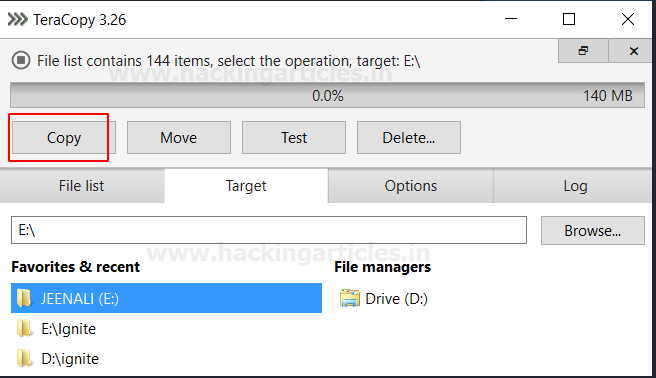
It is a quite simple tool and barely any consumes very little time to copy the files to the destination without changing the original documents date and time. You can download it from here.


Preserving Timestamp in Linux using Terminal
So here you can switch on your linux machines and open your terminal as root. Go to the directory of the source of the file to be copied and type
ls -al


To copy file without changing time stamp, use command;
cp -p 18.png /home/jeenali/Desktop/Ignite


You can see that it has been copied to a new destination without the timestamp changing, to see the file information at new path, type;
ls -al


Conclusion: Hence, here in this article you have learnt about various methods and tools to copy files from one location to the other without changing the timestamp.

USB Forensics: Detection & Investigation


Universal Serial Bus flash drives, commonly known as USB flash drives are the most common storage devices which can be found as evidence in Digital Forensics Investigation. The digital forensic investigation involves following a defined procedure for investigation which needs to be performed in such a manner that the evidence isn’t destroyed. So, let us get started with the Forensics Investigation of USB.

Table of Contents
·        Detecting last attached USB flash drives in the Windows system
§  Using Registry Editor
§  Using PowerShell
§  Using USBDeview
·        Detecting last attached USB flash drives in Linux system
·        Investigating USB flash drives for deleted files
§  Creating Disk Image
§  Analysing Disk Image

Detecting last attached USB flash drives in the Windows system
The usage of USB drives in place of work may let nasty employees remove sensitive or confidential information from a system without any authorization. To resolve this issue, forensic examination of systems comes into the picture. So, let’s start investigating;
To detect the artifacts of the USB in the windows machine, we can use the manual as well as automated methods.

Using Registry Editor
It is a manual method to easily list the information of the last plugged in USB storage devices. Press ‘Windows+R’ and type Registry Editor.

This information can be found in the Windows registry at:
Computer\HKEY_LOCAL_MACHINE\SYSTEM\CurrentControlSet\Enum\USBSTOR
The details like last plugged in USB devices, the vendor of the USB, name of the product, serial number, and version name can be seen.


Using PowerShell
This a manual method to find artifacts. The same path can be used in the PowerShell to get the information on last plugged in USB, with the following command;
Get-ItemProperty -Path HKLM:\SYStem\CurrentControlSet\Enum\USBSTOR\*\* | Select FriendlyName


Using USBDeview
To use an automatic method to find artifacts, you can download USBDeview. This tool gives you an automated and a graphical representation understanding of what USB devices were connected to the system.


Detecting last attached USB flash drives in Linux system
When the USB flash drives history need to be investigated remotely, we can make use of modules in Metasploit in the Kali Linux This module will enumerate USB Drive history on a target host. To use this module, switch on your Linux machine, start msfconsole, and type command;
 use post/windows/gather/usb_history
Set the session number and exploit. Here you will be able to see a history of various USB connected previously.


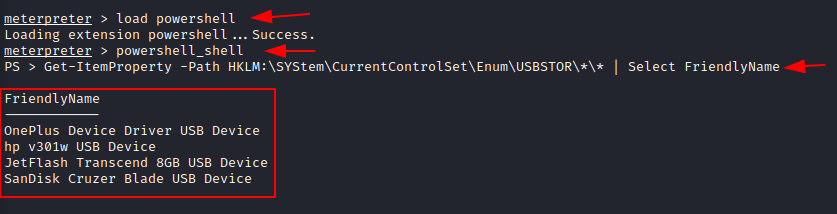
Now you have also obtained the meterpreter session, so in order to use the powershell remotely to get the history of USB flash drives connected you can use the following command;
load powershell
Once the PowerShell is loaded, you can type,
Get-ItemProperty -Path HKLM:\SYStem\CurrentControlSet\Enum\USBSTOR\*\* | Select FriendlyName


You can hence see the list of USB Flash drives connected to the system remotely.
Investigating USB flash drives for deleted files.
After we have detected all the USB connected to the system and if the USB Flash drive is available at the scene of crime. It can be carefully collected in Faraday Bag and now the forensic investigator can investigate the evidence.
At first, it is important to create an image of the USB flash drive that was retrieved from the crime scene. To create an image and to analyse, we can use FTK® Imager, which can be downloaded from here.
Creating Disk Image
Step 1: Install and run AccessData FTK imager


Step 2. Create a disk image of the USB Drive
A disk image is a bit-by-bit or a sector-by-sector copy of a physical storage device like USB Flash drive, which includes all files, folders and unallocated, free and slack space etc.


Step 3: As it as USB Flash drive, select Physical Drive and its source to create image and click on finish.


Step 4: Add the destination of the image file, check the box which say verify images that are created
.

Step 5: After adding the destination of the image file to be create, type the name you want to give to the image file and click on finish.


Step 6:  You can see that the image destination is ready, then click on Start to begin imaging.


Step 7: You see that the image of your USB flash Drive is being created.


Step 8: After the imaging is completed, you will be prompted with MD% image verification details where a compared and verified hash is generated.


Here the imaging part is over, so we can now move to analysis of the USB Flash Drive.
Analysing Disk Image
Note: Investigation is to be performed only on the Disk image of the original evidence.
Step 9: Click on add evidence item and add the source of the created image file.


Step 10: Here you see that an evidence tree is created and the root folder has deleted folders. Here we will try to retrieve them by clicking on ‘Export files’


Step 11: You see that the deleted folder and the contents of the deleted folder have been retrieved.