Incident Response- Linux Cheatsheet


Detecting any intrusion in your system is a very important step towards Incident response. Incident response is quite vast, but it is always better to start small. While performing incident response, you should always focus on suspected systems and the areas where it seems there could be a breach. Making use of Incident Response, you could detect a large amount of attacks at primary level.
The purpose of incident response is nothing but Live Forensics. The investigation can be carried out to obtain any digital evidence. This article mainly focuses on how incident response can be performed in a Linux system. So, to get you started with this cheatsheet, switch on your linux machine and open terminal to accomplish these commands.
Table of Contents:

·         What is incident Response
·         User Accounts
·         Logs Entries
·         System Resources
·         Processes
·         Services
·         Files
·         Network

What is Incident Response?
Incident Response can be defined as a course of action that is taken whenever a computer or network security incident occurs. As an Incident Responder you should always be aware of what should and should not be present in your system.
The security incidents that could be overcome by:
·         By examining the running processes
·         By having insights on the contents of physical memory.
·         By gathering details on host name, IP address, operating systems etc
·         Gathering information on system services.
·         By identifying all the known and unknown users logged onto the system.
·         By inspecting network connections, open ports and any network activity.
·         By determining the various files present 

User Accounts
As an Incident Responder it is very important to investigate the user account’s activity. It helps you understand the logged in users, the existing users, usual or unusual logins, failed login attempts, permissions, access by sudo etc. The various commands to check the user account activity:
To identify whether there is any account in your system that may seem suspicious. This cat command usually fetches all the information about the user account. To do so, type
cat  /etc/passwd


The’ Setuid’ option in Linux is a unique file permission. So, on a linux system when a user wants to make change of password ,they can  run the ‘passwd’ command. As the root account is marked as setuid, you can get temporary permission.
passwd -S [User_Name]


Grep is used for searching plain- text for lines that match a regular expression. :0: is used to display ‘UID 0’ files in /etc/passwd file.
grep :0: /etc/passwd


To Identify and display whether an attacker created any temporary user to perform an attack, type
find / -nouser -print


The /etc/shadow contains encrypted password, details about the passwords and is only accessible by the root users.
Cat /etc/shadow


The group file displays the information of the groups used by the user. To view the details, type
cat /etc/group


If you want view information about user and group privileges to be displayed, the/ etc/sudoers file can be viewed
cat /etc/sudoers


Log Entries
To view the reports of the most recent login of a particular user or all the users in the linux system, you can type,
lastlog


To identify any curious SSH & telnet logins or authentication in the system, you can go to /var/log/ directory and then type
tail auth.log


To view the history of commands that the user has typed, you can type history with less or can even mention up to the amount of commands you typed last. To view history, you can type
history| less


System Resources
System resources can tell you a lot about system logging information, uptime of the system, the memory space and utilisation of the system etc.
To know whether your linux system has been running overtime or to see how long the server has been running for, the current time in the system, how many users have currently logged on, and the load averages of system, then you can type
uptime


To view the memory utilisation by the system in linux, the used physical and swap memory in the system, as well as the buffers used by the kernel, you can type,
free


As an incident responder to check the detail information of the ram, memory space available, buffers and swap on the system, you can type
cat /proc/meminfo


As an incident responder, its your responsibility to check if there is an unknown mount on your system, to check the mount present on your system, you can type
cat /proc/mounts


Processes
As an incident responder, you should be always curious when you are looking through the output generated by your system. Your curiosity should compel you view the programs that are currently running in the system, if they necessary to run and if they should be running, and usage of the CPU usage by these processes etc.
To get a dynamic and a real-time visual of all the processes running in the linux system, summary on the information of the system and the list of processes and their ID numbers or threads managed by Linux Kernel, you can make use of
top


To see the process status of your linux and the currently running processes system and the PID. In order to identify abnormal processes that could indicate any malicious activity in the linux system, you can use
 ps aux


To display more details on a particular process, you can use,
lsof –p [pid]


Services
The services in the linux system can be classified into system and network services. System services include status of services, cron, etc and network services include file transfer, domain name resolution, firewalls, etc. As an incident responder you an identify if there is any anomaly in the services.
To find any abnormally running services, you can use
service –-status-all 


The incident responder should look for any suspicious scheduled tasks and jobs. To find the scheduled tasks, you can use,
 cat /etc/crontab


To resolve DNS configuration issues and to avail a list of keywords with values that provide the various types of resolver information, you can use
more /etc/resolv.conf


To check file that translates hostnames or domain names to IP addresses, which is useful for testing changes to the website or the SSL setup, you can use
more /etc/hosts


To check and manage the IPv4 packet filtering and NAT in linux systems, you can use iptables, and can make use of a variety of commands like:
iptables -L -n


Files
As an incident responder you should be aware of  any abnormal looking files in your system.
To identify any overly large files in your system and their permissions with their destination, you can use
find /home/ -type f -size +512k -exec ls -lh {} \;


Whenever any command runs, at which SUID bit is set then its effective UID becomes the owner of that file. So, if you want to find all those files that hold the SUID bit then it can be retrieved by typing the command
find /etc/ -readable -type f 2>/dev/null


As an incident responder, if you want to see an anomalous file that has been present in the system for 2 days, you can use the command,
find / -mtime -2 -ls


Network Settings
As an incident responder, you should have a keen eye on the Network activity and setting. It is extremely vital to identify the overall picture of a system network and its health. To obtain the network activity information, you can use various commands.
To see your network interfaces on system, you can use
Ifconfig


To list all the processes that are listening to portswith their PID, you can use
lsof -i


To display all the listening ports in the network use
netstat -nap


To display the system ARP cache, you can type
arp -a


The $PATH displays a list of directories that tells the shell which directories to search for executable files, in order to check for directories that are in your path you can use.
echo $PATH


Conclusion:
Hence, one can make use these commands as an incident responder and keep their linux systems away from threat.


Threat Intelligence: MISP Lab Setup


MISP is an open-source Threat intelligence and sharing platform (formerly known as Malware Information Sharing Platform) that is used for collecting, storing distributing, and sharing cybersecurity indicators and threats about cybersecurity incidents & malware analysis.
MISP provides facilities to support the exchange of information but also the consumption of information by network intrusion detection systems (NIDS), a Log-based intrusion detection system (LIDS), but also by log analysis tools, SIEMs.

·         MISP provides storage of technical and non-technical information about seen malware and attacks.
·         Creates automatically relations between malware and their attributes.
·         It Stores all of the intelligence and threat attributes data in a structured format.
·         It Shares threat attributes & malware data by default with other trust-groups.
·         MISP able to Improve malware detection and reversing to promote information exchange among organizations (e.g. avoiding duplicate works).
·         MISP Stores all information from other instances locally (ensuring confidentiality on queries).


To configure MISP in your Ubuntu platform, there are some prerequisites required for installation.

Ubuntu 20.04.1
Mysql
Non-root user

Table of Content

·         Install MISP and All Dependencies
·         Default Credentials
·         Change admin password
·         Create an organization
·         Create admin for the new organization
·         Enable threat intel feeds
·         Setup of IPython+PyMisp
·         Integrate MISP instance with PyMISP
·         Create a MISP event
·         Addition of object to MISP event
·         Search MISP for IOC
·         Threat monitoring
·         Updation of MISP in future for latest versions

Install MISP and All Dependencies

Let’s begin installation with system update and upgrade.

sudo apt-get update -y && sudo apt-get upgrade -y


MISP requires Mysql-client available in our machine. Install Mysql-client using the below command.

sudo apt-get install mysql-client  -y

To install MISP on fresh ubuntu 20.04.1, all you need to do is the following. Just remember one thing this is an automated bash script that can’t run with Root privileges run this script with Non-root users.
Install MISP with install.sh


Change the permission of file misp_install.sh and make it executable. To do this run the following command. The script will need some time to install MISP on your Ubuntu platform.

chmod +x misp_install.sh
./misp_install.sh -A


In the middle of installation Enter “Y” to create MISP user


Now, we are going to add a rule to firewall this will allow port 80/tcp and 443/tcp

sudo ufw allow 80/tcp
sudo ufw allow 443/tcp

After, the installation of MISP we can use a browser to connect to MISP.
By Default, MISP is listening on loopback address or Base URL To access MISP on your Browser browse the following URL


Default Credentials

For the MISP web interface -> admin@admin.test:admin
For the system -> misp:Password1234


Change Admin Password

Enter new Password
The password must be in standard form. Minimum Length of password is at least 12 words that contain upper case & lowercase alphabet, special character and a numerical value
For example: - Ignite@12345


You can verify your credentials by head over to


 or also by going in my profile section of MISP Administration panel


Create an organization

GO to Administration section head over to Add Organisations


·         Select Administration > add Organisations
·         Enter “< organization name >” into organization identifier
·         Select “Generate UUID”
·         Select “submit” button at the bottom


You can also check the instance presence of your local organizations by heading over to List organizations under the section of Administration


Create Admin for New Organisation

we have successfully created an organization let’s assign an Admin role to the organization all you need to do is head over to “Add User” under the section of “Administration”
Administration > Add user


·         Enter “ignite@” for email
·         Check the “set password” password should be in a standard form that satisfies the minimum requirements.
·         Select “” for organization
·         Select “Role” for the new organization
·         Select “submit” button at the bottom


You can also check the instance Rights of your local organizations by heading over to List organizations under the section of Administration


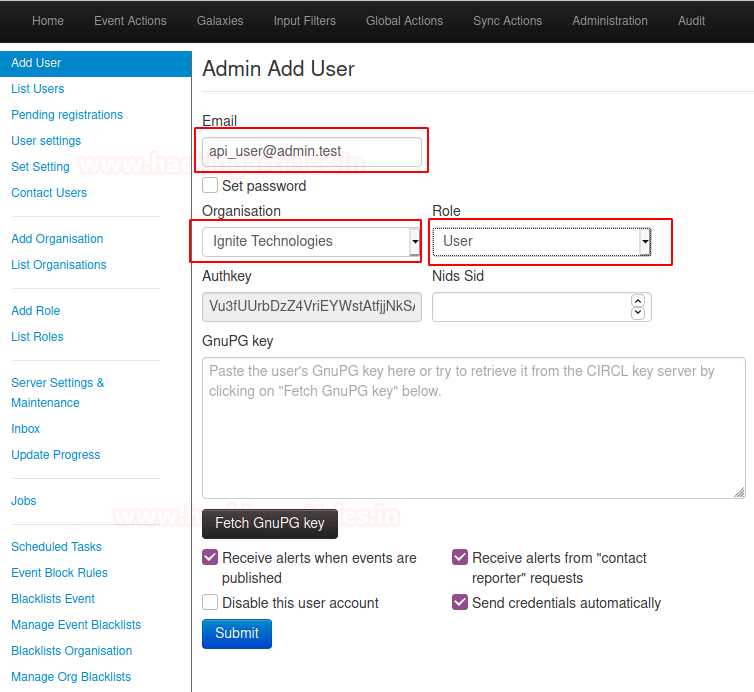
Create an API user for the new organization

Administration > Add user
Enter “api_user@” for email
Select “” for organization
Select the “user” role for the new organization
Select “submit” button at the bottom


Enable Threat intel feeds

TO enable feeds you will need to login to MISP console with the superuser account which is admin@admin.test account.
This one is a little bit special, as we can go into the “Sync actions” tab to build our panel.


When entering the Sync actions tab, select the list feeds tab.
From there find feeds such as CIRCL osint and check feeds tab


And then head over to the “Edit” icon

·         Check “Enabled”
·         Check “Lookup Visible”
·         Check “Caching Enabled”
·         Select “Edit” at the bottom


By Editing feeds head over to “fetch and store all feed data” tab


Great! we have successfully Enabled threat intel feeds.


Setup Ipython+PyMISP

PyMISP is a python library to access MISP platforms via there REST API.
PyMISP allows you to fetch events, add or update events/attributes, add or update samples or search for attributes. PyMISP API is used to store indicators of compromise (IOCs) in MISP and query IOCs from MISP.
In the MISP console head over to Administration and select List Users
Look for “api_user@” and copy “auth key”
Let’s open the terminal and begin setup of Ipython & PyMISP
To do this run the following command

Pip3 install ipython
pip3 install -U pymisp


Connect MISP instance with PyMISP
Ipython
Ipython is an alterative python interpreter it is an interactive shell used for computing in python. Let’s load the Ipython interpreter and start scripting to do this follow the below commands. Just remind one thing don’t leave or exit from python interpreter till the end (e.g ipython).

Ipython
 from pymisp import ExpandedPyMISP
misp_url = 'https://'
misp_key = ""
misp_verifycert = False
misp = ExpandedPyMISP(misp_url, misp_key, misp_verifycert)


Create MISP Event
MISP events are encapsulation for contextually linked information. Linked information will include things such as domains, file hashes, IP addresses, Malicious binaries,  
We are going to call an object named “Event from notebook 2” to do this run the following command.

from pymisp import ExpandedPyMISP, PyMISP, MISPEvent
event_obj = MISPEvent()
event_obj.distribution = 1
event_obj.threat_level_id = 1
event_obj.analysis = 1
event_obj.info = "Event from notebook 2"
# Add event to MISP
event = misp.add_event(event_obj)
event_id, event_uuid = event['Event']['id'], event['Event']['uuid']
print (event_id, event_uuid)


Addition of object to MISP event
The creation of a new MISP object generator should be done using a pre-defined template and inheritance. Our new MISP generator needs to generate attributes, and add them as class properties using additional attributes. When the object is sent to MISP, all the class properties will be exported to JSON Export. Attributes in MISP can be network indicators such as IP address, System indicators (e.g a string in memory), or bank account details.
To do this run the following command.

from pymisp import MISPAttribute
# Define attributes
attr_type = "ip-src"
value = "8.8.8.8"
category = "Network activity"
to_ids = False
# Create attribute object
attribute = MISPAttribute()
attribute.type = attr_type
attribute.value = value
attribute.category = category
attribute.to_ids = to_ids
# Add attributes to event
attribute_to_change = misp.add_attribute(event_id, attribute)
# Print event
print(attribute_to_change['Attribute']['id'], attribute_to_change)


 Search MISP for IOC


Let’s search for a IOC in MISP ipython interpreter. Run the following command to perform the search.
misp.search(controller='attributes', type_attribute="ip-src", value="8.8.8.8")


Awesome now you have completely setup MISP on your Ubuntu Platform.
Great!


Threat Monitring


Let’s check what happens on the MISP dashboard.
This one is gonna very special as we can go into the “Audit” tab to build our panel.
When entering the Audit tab select “List Logs” tab


 Wait this is not enough :-)
Hold tight!
As we can see, Now we have direct access to every log related to Threat Intelligence.
We can for Example track illegal attacks.
Similarly, we can do Malware analysis from various servers also we can see logs of (NIDS) Network intrusion detection system,  (LIDS), Log analysis Tools, SIEMs.


Nice! Now your Panel is included in your dashboard.

Updation of MISP in Future for Latest Versions


It is strongly recommended to upgrade MISP via the Web interface. This Blog may not always be up-to-date and will require you to fix permissions.
In general, updating MISP between point releases for example 2.4.50 -> 2.4.53 happens with the following command are to be executed to be as root.

To update the latest commit from 2.4 branches simply pull the latest commit.
Enter the following command
cd /var/www/MISP
Sudo -u www-data git pull origin 2.4
Sudo -u www-data git submodule update –init –recursive