Nmap Scan with Timing Parameters


Hello everyone, in this article we will have a look at the different parameters that are used together to make a timing template and how to use those parameters individually according to will.
Let’s Start!!
Nmap timing template
As we have seen that Nmap has multiple timing templates that can be used for differently as according to the requirement. Click here to check the timing scan article. Let’s see what’s inside the timing template. For getting the description of timing template we’ll use -dattribute.
nmap –T4 –d -p21-25 192.168.1.139
Here we have multiple arguments that collectively make a timing template. Let’s have a look at them one by one.
·         Host-groups
·         Rtt-timeouts
·         Scan-delay
·         Max-retires
·         Min-rates
·         Parallelism


Maximum Retries (--max-retries)
--max-retries specifies the number of times a packet is to be resent on a port to check if it is open or closed. If --max-retries is set to 0, the packets will be sent only once on a port and no retries will be done.
nmap -p21-25 192.168..1.139 --max-retries 0


Here in wireshark, we can see that 1-1 TCP SYN packet sent to each port from source: 192.168.1.126 to destination: 192.168.1.139 are not sent again.


Now we will apply a small firewall rule on the target machine so that the packets get blocked if they come at a faster rate.
sudo iptables -I INPUT -p tcp -m state --state NEW --m recent --set
sudo iptables -I INPUT -p tcp -m state --state NEW --m recent --update --seconds 1 --hitcount 1 -j DROP


Now, the normal scan will not show any results with max-retries

nmap -p21-25 192.168..1.139 --max-retries 0


As we can see that the ports whose packets got dropped are not sent again so their status is not determined.


here we can increase the max-retries value which will bypass the specified firewall filter so that we can get the exact port status.
nmap -p21-25 192.168..1.139 --max-retries 5


Here we can see that TCP SYN packets sent to one port from source: 192.168.1.126 to destination: 192.168.1.139 are sent again and again until the packets return a specified reply or the maximum retry value (here 5) is reached.


Host-timeout
The --host-timeout is an attribute that specifies the scan to give up on a host after the specified time. The lesser the time specified the more are the chances of inaccuracy in scan results.
We can specify time in milliseconds (ms), seconds (s), minutes (m)
nmap -p21-25 192.168.1.139 --host-timeout 10ms


Now we will try to get the result by increasing the timeout value
nmap-p21-25 192.168.1.139--host-timeout 100ms


We can use --host-timeout in other scenarios also like when we need to check if the host system is live or not. Here we have shown how the host-timeout can affect the results of a ping scan.
nmap -sp 192.168.1.139 --host-timeout 10ms
Output from above command had given 0 host is up.
nmap -sp 192.168.1.139--host-timeout 100ms
Output from above command had given 1 host is up.


Hostgroup

hostgroup attribute is specified to scan a specified number of hosts in network at a time. You need to specify minimum number of hosts or maximum number of hosts or both to be scaned at a time
nmap --sP 192.168.1.1/24 --min-hostgroup 3 --max-hostgroup 3
From given below image you can observed that it has shown only 3 live host from inside complete subnet mask and save your time from scanning complete network.


Scan delay
Scan delay is used to delay the packet to be sent by the specified time. It is very useful in evading time based firewalls.
nmap –p21-25 192.168.1.139 –scan-delay 11s


here we can see the time difference in between the packets

packet 1: TCP SYN packet on port 25 at 07:58:01 from 192.168.1.126 to 192.168.1.139


packet 2: TCP SYN packet on port 22 at 07:58:12 from 192.168.1.126 to 192.168.1.139
Now if you will count the time difference between these packets you get 11 sec time laps between these two packets.


Maximum rate (max-rate)

Rate is an attribute that specifies at what rate is the packets are to be sent, in other words number of packets to be sent at a time. Max-rate specifies maximum number of packets to be sent at once.

nmap -p21-25 192.168.1.139 --max-rate 2


wireshark shows that the packets sending rate is less than 2, means number of packets sent at a time is less than or equal to 2
packet 1: TCP SYN packet on port 21 at 03:17:20 from 192.168.1.126 to 192.168.1.139


packet 2: TCP SYN packet on port 23 at 03:17:21 from 192.168.1.126 to 192.168.1.139
Now if you will count the time difference between these packets you get 1 sec time laps between these two packets indicating that these two packets were not sent together.


Minimum rate (mini-rate)

Min-rate specifies maximum number of packets to be sent at once. Here if we want atleat 2 packet must be sent on target’s network at same time not less then this, then need to execute below command.
nmap -p21-25 192.168.1.139 --min-rate 2


wireshark shows that the packets sending rate is greater than 2, means number of packets sent at a time is equal to or greater than 2

packet 1: TCP SYN packet on port 23 at 03:28:29 from 192.168.1.126 to 192.168.1.139


packet 2: TCP SYN packet on port 22 at 03:28:29 from 192.168.1.126 to 192.168.1.139
Now if you will count the time difference between these packets you get only a fraction of second as time laps between these two packets indicating that these two packets were sent together.


Parallelism
Parallelism attribute is used to send multiple packets in parallel, min-parallelism means that the number of packets to be sent in parallel is to be greater than the value specified and max-parallelism means that the number of packets to be sent in parallel is to be less than or equal to the value specified
nmap -p21-25 192.168.1.139 --min-parallelism 2 --max-parallelism 2


In wireshark we can see the couple of TCP-SYN packetssent in parallel from 192.168.1.126 which is neither less nor greater than 2.


Round trip timeout
Rtt timeout is the time specified for a packet to return a reply, min-rtt-timeout specifies the minimum value of time that is to be taken by a packet to return a reply
nmap -p21-25 192.168.1.139--min-rtt-timeout 5ms


wireshark shows that the packet and its reply takes time greater than the min-rtt-timeout specified
packet 1: TCP SYN packet on port 25 at 08:10:53.232666116 from 192.168.1.126 to 192.168.1.139wireshark shows that the packet and its reply takes time greater than the min-rtt-timeout specified
packet 1: TCP SYN packet on port 25 at 08:10:53.232666116 from 192.168.1.126 to 192.168.1.139


packet 2: SYN ACK packet from port 25 at 08:10:53.233466679 from 192.168.1.139 to 192.168.1.126


Max-rtt-timeout
max-rtt-timeout specifies the maximum value of time that is to be taken by a packet to return a reply
nmap -p21-25 192.168.1.139--max-rtt-timeout 50ms


wireshark shows that the packet and its reply takes time lesser than the max-rtt-timeout

packet 1: TCP SYN packet on port 22 at 08:15:08.171777907 from 192.168.1.126 to 192.168.1.139


packet 2: SYN ACK packet from port 22 at 08:15:08.173117154 from 192.168.1.139 to 192.168.1.126


Intial Round trip timeout

Initial-rtt-timeout specifies the initial value of time to be taken by a packet to return a reply, the return time can be greater or lesser than the  initial-rtt-timeout because of the max-rtt-timeout and min-rtt-timeout specifeies the range of time for a packet to return a reply but the packet attempts to return a reply in the time specified in initial-rtt-timeout
nmap -p21-25 192.168.1.139--initial-rtt-timeout 15ms


wireshark shows that the time taken by packet to return reply is around same as specified in initial-rtt-timeout

packet 1: TCP SYN packet on port 23 at 08:18:45.342395520 from 192.168.1.126 to 192.168.1.139


packet 2: SYN ACK packet from port 23 at 08:18:45.342930962 from 192.168.1.139 to 192.168.1.126


Examine Browser Ad-Blockers Strength using Burpsuite


Today we will determine the effectiveness of different blocker such as Ghostery, Adblock Ultimate and Ublock Origin which are extension of browser’s and their work is to block Ad’s popping up while browsing through websites on your browser.
To make use of these extension’s you need to install and enable them. We will determine the strength of these Ad Blocker’s by checking the number of HTTP GET Request they allow a website to generate which is explained as follows.
Let’s start!!
Examine HTTP Request without any Ad-blocker

 In order to analyze this we have intercepted the request of the website CNN.COM.


Using Burp suite in our usual way without any Extension or Ad-Blocker enabled. Then we have turn off the intercept tab after capturing the request of the website.
Click on HTTP History Tab under the Proxy Tab, where we see that the website has made 122 HTTP GET requests. These requests are generated without any extension enabled.
Examine Adblock Ultimate Extension
Similar next we have intercepted the request of the website CNN.com when installed AdBlock Ultimate is enable in our Firefox.
Next we have intercepted the request of the website CNN.com when installed AdBlock Ultimate is enable in our Firefox. Then we have turn off the intercept tab after capturing the request of the website.
Click on HTTP History Tab under the Proxy Tab, where we see that the website has made 116 HTTP GET requests. As you can see the number of request have reduced which shows the strength.
Examine Ghostery Extension
Similar next we have intercepted the request of the website CNN.com when installed Ghostry is enable in our Firefox.
Using Burp suite in our usual way but with Ghostery Exntension enabled. Then we have turn off the intercept tab after capturing the request of the website.
Click on HTTP History Tab under the Proxy Tab, where we see that the website has made 113 HTTP GET requests. As you can see the number of request have reduced which shows the strength of the Ghostery Exntension is better than AdBlock Ultimate Exntension.
Examine UBlock Origin
We have intercepted the request of the website CNN.com when ublock origin is enabled.
Using Burp suite in our usual way but with Ublock Origin Exntension enabled. Before capturing the request of the website you need to install the Exntension and Enable it. Then we have turn off the intercept tab after capturing the request of the website.


Click on HTTP History Tab under the Proxy Tab, where we see that the website has made 110 HTTP GET requests. As you can see the number of request have reduced which shows the strength of the Ublock Origin Exntension.

Conclusion: looking at conclusion from given below table you can decide whose strength is better.

S.No
Browser Ad-blocker
Captured HTTP Request
1
Without Ad-blocker
122 HTTP GET
2
AdBlock Ultimate
116 HTTP GET
3
Ghostery
116 HTTP GET
4
Ublock Origin
110 HTTP GET


Comprehensive Guide to Crunch Tool


 Hello friends!! Today we will demonstrate how a pentester can generate his own wordlist for username either password using the most powerful tool CRUNCH. In kali Linux you can easily get crunch by exploring Application > Password Attacks > Crunch

Crunch can generate a wordlist subject to the conditions you specify and its output file can be used in any other another program or file.


We are using crunch version 3.6 for this tutorial and followed given below parameters for generating wordlist.
Syntax: [character-string] [options]
Min-len:  This parameter specify minimum length string required for crunch to start generating wordlist.
Max-len: This parameter specify maximum length string required for crunch to end.
Charset string: This parameter specify character sets for crunch to use for generating wordlist from that string, if you have not specified any string then crunch will default characters string.
Options: crunch serves you a list of options which increase its functionality for generating wordlist as per your requirement.


Generating wordlist without using character string
Execute given below command which will generate a dictionary that contains minimum 2 character letters and maximum 3 by using default character sets. It will start from aa and end with zzz.

crunch 2 3 -o  /root/Desktop/0.txt

Here we had used following parameters for generating a dictionary:
Min_len: 2 for two character letters
Max_len: 3 for three character letters
-o: This option denotes the path to save the output in a text file.
From given below image you can observe that it has generated 18252 number of lines and saved in 0.txt file.


Now here we had used cat command to read the content from inside 0.txt file where we can perceive that it has start from aa and end with zzz as shown in given below image.
cat /root/Desktop/0.txt


Generating wordlist using character string

Now execute given below command which will generate a dictionary that contains minimum 3 character letters and maximum 4 by using “raj” as specified string. Similarly it will start from rrr and end with jjjj.

crunch 3 4  raj -o  /root/Desktop/1.txt

From given below image you can observe that it has generated 108 number of lines and saved in 1.txt file.


Now we had used cat command to read the content from inside 1.txt file where we can perceive that it has start from rrr and end with jjjj.
cat /root/Desktop/1.txt
Similarly we can use string of any number for making a dictionary which contains numeric characters.

For example: some users set their date of birth as password and we would like to generate a dictionary that contains combination of four number such that it represent month and date for instant 25th May as 2505 then you can use “2505” as character string for generating a numeric wordlist.
 

 Generating alpha-numeric wordlist
You can generate you own alpha-numeric wordlist, execute given below command which will generate a dictionary that contains minimum 2 character letters and maximum 3 by using “raj123” as specified string. 
You can set minimum and maximum length for your wordlist as per your requirement.

crunch 2 4  raj123 -o  /root/Desktop/3.txt


Again we had used cat command to read the content from inside 3.txt file where we can perceive that it has combination of alpha-numeric character.
cat /root/Desktop/3.txt


Generating wordlist along with space character
Following command will generate wordlist using space character (\) with string “raj”. Instead of using (\) you can also use double quotes around string as “raj ” along with space within double quotes. 
crunch 1 3  raj\ -o  /root/Desktop/4.txt


Create wordlist using character set file of RainbowCrack

As we known rainbow crack has a character set file which is used for cracking hashes by using rainbow table, but we’ll use this character set file for generating a complex wordlist as per situation demands.

cat /usr/share/rainbowcrack/charset.txt

We had used cat command to express the list of character set that has been stored in charset.txt of rainbowcrack.  From given below image you can observed that it is showing following list of character set.
·         Numeric
·         Alpha
·         Alpha-numeric
·         Loweralpha
·         Loweralpha numeric
·         Mixalpha
·         Mixalpha-numeric
·         Ascii -32-95
·         Ascii -32-65-123-4
·         Alpha-numeric-symbol32-space


Now you can choose any character set for generating wordlist. Let suppose I want to generate a wordlist which contains lower alphabets letter along with numeric number for 5 letter words so for that I will execute following command.
crunch  4 5  -f /usr/share/rainbowcrack/charset.txt loweralpha-numeric -o  /root/Desktop/5.txt
Here –f denotes Specifies a character set from the charset.lst


Again we had used cat command to read the content from inside 5.txt file where we can perceive that it has combination of alpha-numeric character.

cat /root/Desktop/5.txt


Generate wordlist with specific Pattern

Crunch provides –t option to generate a wordlist using a specific pattern as per your requirement.
Using option –t you can generate 4 type patters as specified below:
·         Use @ for lowercase alphabets
·         Use , for uppercase alphabets
·         Use % for numeric character
·         Use ^ for special character symbol

For generating a wordlist that contains 3 numeric characters on the right side of string “raj” for instant raj123, we need to execute following command.

Since we have 3 letters from string raj and we are assuming 3 more numeric number after the given string, therefore the minimum length should be sum of string and pattern character.

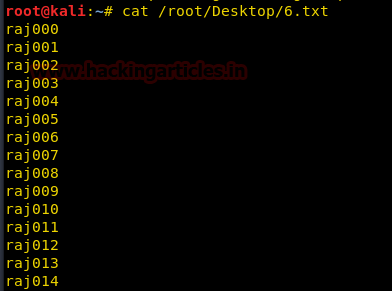
crunch 6 6 -t raj%%% -o/root/Desktop/6.txt
Here –t denotes % pattern is used for editing 3 numeric character.


Again we had used cat command to read the content from inside 6.txt file where we can perceive that it has combination of alpha-numeric character.
cat /root/Desktop/6.txt


Generate wordlist with Duplicate character limit
Crunch let you bound the repetition of character by using –d parameters along with the given pattern. 
As we saw, above the pattern for raj%%% starts with raj000 which means every single number will consecutive either twice or thrice such as it will contain word as raj000, raj001, raj111, raj110 and so on in the wordlist.
If you don’t wish to create a wordlist with repeated number then you can use –d option to set filter for repetition.
For example: I want to generate a wordlist by using above pattern i.e. raj%%% and consecutive repetition of each number almost twice. For implementing such type of dictionary we need to execute below command.
crunch 6 6 -t raj%%% -d 2% -o/root/Desktop/6.1.txt
here we had use following parameter
–t denotes % pattern is used for editing 3 numeric character
-d denote % pattern is used for editing 3 numeric character with repetition of each number almost twice.


Again we had used cat command to read the content from inside 6.1.txt file where we can perceive that it has combination of alpha-numeric character with repetition of each number two times.
cat /root/Desktop/6.1.txt
Now if you will compare output file 6.txt and 6.1.txt then you can notice difference of number repetition.


Generate wordlist with Pattern for uppercase letter

For generating a wordlist that contains 3 uppercase characters on the right side of string “raj” for instant rajABC, we need to execute following command.

Since we have 3 letters from string raj and we are assuming 3 more uppercase letter after the given string, therefore the minimum length should be sum of string and pattern character.

crunch 6 6 -t raj,,, -o/root/Desktop/7.txt
Here –t denotes (,) pattern is used for editing 3 uppercase letter character.


Again we had used cat command to read the content from inside 7.txt file where we can perceive that it has combination of mix-alpha character.
cat /root/Desktop/7.txt


Similarly we can set limit for uppercase letter repletion as done above. So if I want that alphabets should not be consecutive then we can execute given below command for generating such type of dictionary.
crunch 6 6 -t raj,,, -d 1, -o/root/Desktop/7.1.txt
–t denotes (,) pattern is used for editing 3 uppercase character
-d denote (,) pattern is used for editing 3 uppercase character with repetition of each number almost one.


Again we had used cat command to read the content from inside 7.1.txt file where we can perceive that it has combination of mix-alpha character with repetition of each number two times.
cat /root/Desktop/7.1.txt
Now if you will compare output file 7.txt and 7.1.txt then you can notice difference of alphabet repetition.


Use Permutation for generating wordlist

-p option is used for generating wordlist with help of permutation, here can ignore min and max length of character string. Moreover it can be used with one word string or multiple words string as given below.
crunch 3 6 –p raj chandel hackingarticles

From given below image you can analysis the output result and get maximum number of permutation generated.


Generate Dictionary with limited words

If you will observe above all output result then you will find crunch has generated dictionary and displays the number of line for each dictionary. For instance text file 0.txt has 18525 number of line and each line contains one word only.
So if you wish to set filter for certain number of line should be generated then execute given below line.
crunch 5 5 IGNITE -c 25 -o /root/Desktop/8.txt

It will generate a dictionary of 25 words only and save output in 8.txt.


Again we had used cat command to read the content from inside8.txt file where we can perceive that it has only 25 alpha character.
cat /root/Desktop/8.txt


Wordlist Fragmentation

Use –b option for wordlist fragmentation that split a single wordlist into multi wordlist. It is quite useful option for dividing wordlist which is in GB can break into MB.
crunch 5 7 raj@123 -b 3mb –o START

From given below image you can observe that it has divided a 7MB file into three text file.


Generate compressed Dictionary
Crunch let you generate compress wordlist with option –z and other parameters are gzip, bzip2, lzma, and 7z, execute given below command for compression.

crunch 5 7 raj@123 –z gzip –o START

From given below image you can observe that it has generated compress text file.